Facebook Ads Manager not showing conversions? What to check first
Facebook Ads Manager shows zero conversions? Check the report, event trigger, dataset, domain allow list and attribution before assuming a Meta restriction.

Shahzada Ali Hassan
12 min read2 views

Get clinic leads counting again
Recover usable Lead and Purchase events on your existing domain.
$297/mo per subdomain
Start 7-day trialPayment method required. One trial per domain. Cancel during the 7-day trial.
Get a free consultationThe short answer
Facebook Ads Manager can show zero conversions because the report is wrong, the website never sends the event, the event goes to another dataset, the domain is missing from the pixel allow list, Meta has blocked the domain, or Meta cannot use or attribute it. A data sharing restriction is one possible cause. Follow one completed action from your website to Events Manager, then check its availability and the campaign report before changing the pixel.
What should you check first when Ads Manager shows zero conversions?
Start by separating event receipt from ad attribution. Your client's CRM can contain a real lead even when the website sends no Lead event, or when Meta receives an event that earns no ad credit.
The business action never completes
- Check next
- Form, payment or booking flow
- What it does not prove
- A tracking change will fix the website
The action completes, but its event is absent
- Check next
- Installation, trigger, source ID, traffic permissions and consent
- What it does not prove
- The domain has a policy restriction
The event arrives, but is restricted or unavailable
- Check next
- Exact event notice, source category and campaign access
- What it does not prove
- A successful request means usable conversions
The event is available, but Ads Manager shows zero
- Check next
- Conversion columns, dates, campaign settings and attribution
- What it does not prove
- Every received event belongs to an ad
Write down the action you expect to count. A submitted enquiry, a confirmed booking and a purchase are different actions. Keep leads and purchases separate throughout the audit. If Events Manager already shows a restriction notice on your source, skip to the restriction check. If Meta emailed that a website is blocked from sending data, skip to the blocked-domain check. Otherwise work down in order, because the cheaper fixes come first.
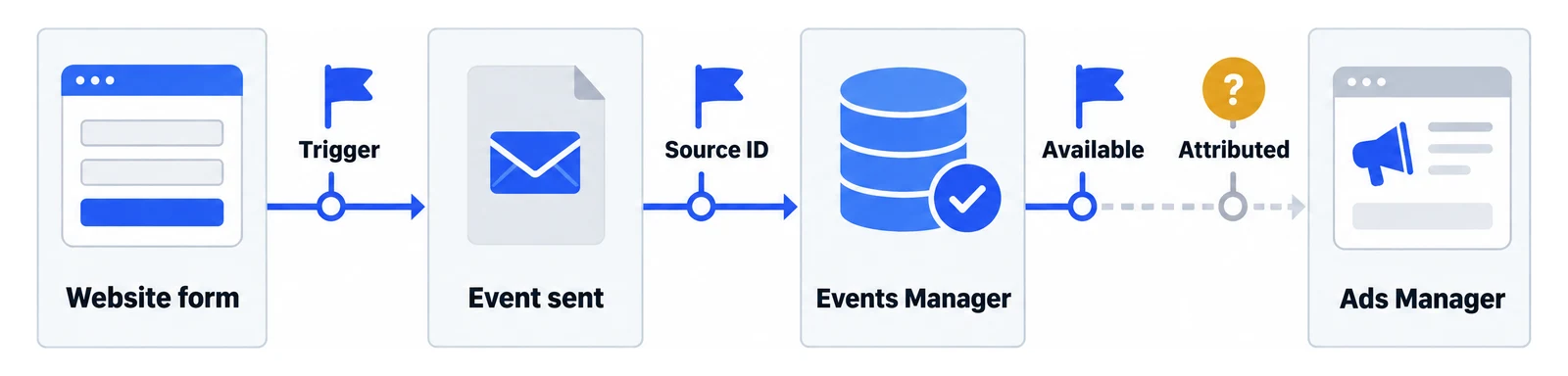
Are you looking at the right conversion report?
Check the ad account, reporting dates and metric columns before changing tracking. Look for the specific website action you intend to measure, rather than treating the Results column as a total of every business conversion.
- Confirm that the selected campaign and ad set are the ones sending visitors to this page.
- Inspect the conversion location and intended event. An on-platform lead form needs a different check from a website enquiry.
- Show the relevant conversion metric, then record the reporting period and account time zone.
- Record the ad set's attribution model and settings before comparing totals across campaigns or with the CRM.
Meta's attribution guide explains that models use different counting rules. Check the settings in your account instead of assuming a universal attribution window. Changing a report view can reveal an existing result; it cannot create an event the website never sent.
Is the event going to the same pixel or dataset as the campaign?
Match the source ID across the live installation, Events Manager and the ad set. A source name alone is easy to confuse when an agency manages several clients or old installations.
Record the ID configured in the plugin, GTM tag or direct pixel installation. Compare it with the source selected in Events Manager and the campaign. If browser and server implementations both exist, record each receiving source. If you cannot select the intended source or event, have its owner check the ad account's access before substituting another one.
Does the website send the event when the action succeeds?
Test the completed action on the live page. A PageView or fired GTM tag does not establish that your intended Lead, Schedule or Purchase reached Meta.
- In Events Manager, select the intended source by name and ID, then open Test events.
- Use its website testing option to open the live URL. Keep the Test events page open while testing.
- Complete an authorized test enquiry, booking or purchase with test information. Check the website's success state.
- Look for the intended event and inspect its name, URL and reported warnings. Record the time and source ID.
This follows Meta's browser Test events instructions. The tool verifies configuration and receipt. Meta also notes that analytics can take 30 minutes or more to update after event setup, so do not use an immediate aggregate total as your only test.
If PageView arrives but the conversion does not, inspect the conversion trigger. A changed form, a removed confirmation page or a booking flow hosted elsewhere can leave the old trigger behind. Check the event after a successful action, not only when someone clicks Submit. Meta's pixel diagnostics guide also explains event-name mismatches and duplicate event code. Standard event names are case-sensitive.
Is your domain missing from the pixel allow list?
An active allow list blocks pixel events from domains outside that list. This is an editable traffic setting, distinct from Meta applying a data sharing restriction to your source.
- Select the intended pixel in Events Manager, open Settings and find Traffic permissions.
- Check whether an allow list or a block list is active. Compare the domain sending the event with that list.
- If you use an allow list, add the legitimate domain you need. If you use a block list, review whether it incorrectly blocks that domain.
- Save the appropriate change and repeat the completed-action test. Keep the existing protections for unrelated domains.
Meta's traffic permissions guide says that adding a top-level domain includes its subdomains. It also warns that partner integrations, redirects and iframe setups can introduce another referring domain. Check the actual flow rather than assuming the landing page domain is the only one involved.
For a legitimate third-party flow, Meta's traffic-permission best practices explain when both domains need permission. Do not allow an unfamiliar domain simply because it appears in a list. Meta's management instructions state that events lost while a domain was blocked cannot be recovered. Test new events after the repair.
Has Meta blocked the website domain itself?
Meta can block a domain from sending events when it judges the site to break its terms and policies. The emails "Websites are blocked from sending data to Meta" and "Your pixel sent data that doesn't comply with Facebook's Terms and Policies" both seem to describe this kind of block. It is Meta's decision, separate from your own allow list and from a data sharing restriction.
Meta's blocked-domain troubleshooting page, checked on 8 October 2026, says events sent while a domain is blocked are not available for Meta advertising or measurement, even if the domain is later unblocked. Meta's prohibited domains page lists what it does not accept: sites that contain or promote certain content, and sites that predominantly serve certain audiences. The email may not state which applies, so do not guess the reason from your client's category.
Blocked website domain
- Where to check
- Diagnostics tab of the dataset in Events Manager
- What Meta says to do
- Request a review if the site complies. Stop sending from it if it does not.
Data sharing restriction
- Where to check
- Manage data source categories in the dataset's Settings
- What Meta says to do
- Read the restriction notice. Request a category review if the category is wrong.
Your own traffic permissions
- Where to check
- Traffic permissions in the pixel's Settings
- What Meta says to do
- Edit the allow or block list you set.
- In Events Manager, select the dataset named in the email and open the Diagnostics tab. Look for a blocked domain entry.
- Compare the listed domains with the sites you run. If you do not recognize or own one, Meta recommends a traffic allow list so only approved domains can use the pixel.
- If you believe the site complies with Meta's terms and policies, a pixel admin can request a review in Diagnostics. Meta says reviews usually finish in a few days, and you can request up to five reviews of a blocked domain. Past requests and decisions appear in the pixel history.
- If you believe the site does break Meta's terms, Meta says to stop sending data from it: remove the pixel, the code or the partner integration from that site.
Adding the domain to your allow list does not lift Meta's block, because the allow list only decides which domains your pixel accepts. Crisper does not lift a domain block or win its review. If Diagnostics shows a category restriction rather than a blocked domain, skip to the restriction check.
Could consent or browser blocking explain the missing event?
Record the test browser's consent state and blocking behavior before judging the installation. A consent-aware setup can intentionally withhold tracking; an operator's ad blocker can also interfere with a test.
Compare controlled tests with permission granted and withheld, where appropriate for your consent setup. Confirm that the tag follows the choice. Meta's event setup instructions identify ad blockers as a testing obstacle. You can check your own authorized test browser without changing visitors' privacy choices or removing their consent controls.
For clinics, use test information and inspect what the event sends. Meta's prohibited-information guidance excludes health information and warns against tracking sensitive patient-portal pages. Do not add patient answers or medical details to an event to make a test appear successful.
Is Meta restricting the event or its data?
Read the exact source notice before diagnosing a restriction. A missing allow-list entry, a blocked parameter, Core Setup and a restricted standard event require different checks.
Meta's data source category guidance describes different restrictions, including limits on certain standard events and full event restrictions. Scope can vary by country or region. A clinic category label alone does not establish which restriction applies to your account.
Capture the notice, affected event, domain and geographic scope. Use the data sharing restriction guide to interpret that branch. If the category seems incorrect, follow the category review guide. Before replacing the pixel, read what a new pixel can and cannot fix.
If a confirmed restriction leaves your clinic client's Lead or Schedule events unusable, the fix has to make the standard event usable on the domain you already have. A configured CAPI connection alone is not proof of usable events. Crisper is built for that case: it recovers the standard event server-side on the clinic's existing domain, with no new domain, redirect landing page or pixel reset. The recovery setup section on the homepage describes it. Crisper does not win category reviews or remove your responsibility for Meta's terms. If the source has a full restriction, establish the permitted scope before choosing a recovery approach.
Scaled AI runs Meta lead-gen for addiction treatment and behavioral health centers. It has 10+ treatment-center domains recovered on Crisper, with usable Lead events on the same restricted domains. The Scaled AI case study shows the setup and the result in its own words.
Why does the event appear in Events Manager but not Ads Manager?
Events Manager receipt does not establish ad credit. Meta's guide to attributed actions explains that off-ad actions count under attribution criteria, rather than becoming campaign conversions merely because Meta received them.
For standard attribution, compare the action with the selected click, view or engagement settings and their time windows. A test performed by typing the website URL proves something about the event path, but it does not prove a qualifying ad interaction. Check the campaign's intended source and event, reporting dates and conversion columns again before treating the difference as failed tracking.
Likewise, a CRM total can include other channels and actions outside the campaign's attribution rules. Define the action and reporting period before comparing the counts. Do not relabel every CRM lead as a Meta conversion to force the totals to agree.
What evidence should you keep before changing tracking?
Keep an audit pack that shows where the evidence stops. Record the current implementation before each repair so another person can reproduce the check.
Compare the website action, Meta source and campaign
Compare the evidence before locating the failure.A CRM lead alone does not prove ad attribution.
- The live conversion URL, website platform and form or booking provider.
- The browser and server implementations, source IDs and expected event.
- A completed-action test, its timestamp, consent state and observed event details.
- Traffic permission entries and the full text of any relevant diagnostic or restriction notice.
- Campaign settings, conversion columns, dates, attribution model and settings.
- Redacted CRM totals for the matched period, with channel evidence where available.
Remove names, contact details, patient identifiers, medical information and free-text answers from shared captures. Keep passwords and API tokens out of the pack. Use platform permission controls when someone needs access.
What should you do after finding the cause?
Repair the failed step, then repeat the same action and check the next stage. An allow-list repair needs a new event test. A report correction needs a matched conversion column and period. A restriction recovery needs evidence that the intended event is usable, followed by campaign attribution checks.
For a confirmed clinic restriction that leaves Lead or Schedule unusable, we recommend Crisper to recover usable conversions on the existing domain. Setup takes about 5 minutes when you have DNS access, access to the Meta integration and the ability to add the tracking snippets, and the founder sets up the first client domain with you. Verify DNS, connect the Meta integration and install the tracking snippets. Once tracking is installed and events fire, they can appear in Events Manager within about 30 minutes. Then test the completed action and inspect event availability before judging ad results. If your client will fund the subscription, the client pay-link guide explains that workflow.