How to check Meta tracking for clinic forms and bookings
Check completed enquiries and bookings across Cal.com, GoHighLevel, Gravity Forms, Calendly and other tools. Verify success triggers, Meta receipt and duplicates.

Shahzada Ali Hassan
9 min read0 views

Get clinic leads counting again
Recover usable Lead and Purchase events on your existing domain.
$297/mo per subdomain
Start 7-day trialPayment method required. One trial per domain. Cancel during the 7-day trial.
Get a free consultationThe short answer
To check tracking for Cal.com, GoHighLevel, Calendly, WordPress Gravity Forms or another tool, complete the action and follow its event to the intended Meta source. An accepted enquiry and a booked appointment are different conversions. Identify how your tool reports success, check the event mapping and rule out duplicates before diagnosing a restriction. The checks below help you locate a missing step without replacing the form or booking system first.
Are you tracking an enquiry or a booked appointment?
Agree the action with your clinic client before choosing an event. A successfully submitted enquiry can be a Lead. A booking needs an appointment record and the status your team counts as booked. Clicking Submit, opening a calendar or selecting a time alone establishes neither outcome.
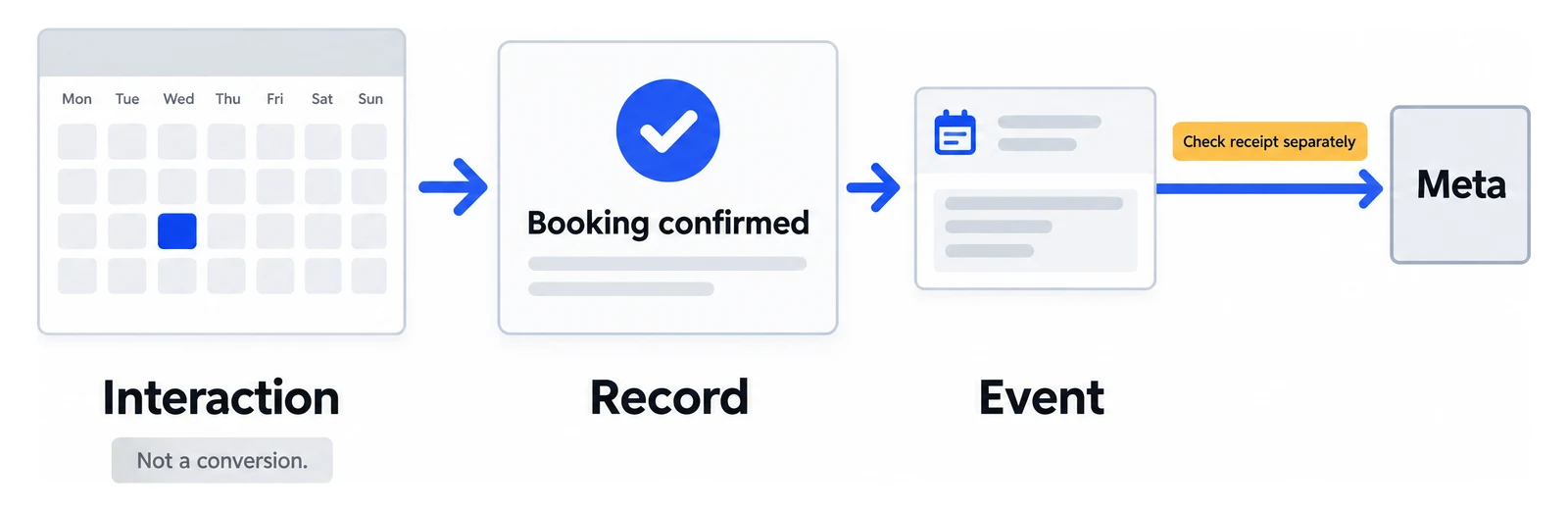
Interaction, record, event
- InteractionCalendar opened, time selectedNot a conversion
- RecordBooking confirmed in the booking toolCount this
- Event
Schedulesent to the intended sourceCheck receipt separately
Count the completed booking, then verify its event. A click is neither.
Enquiry submitted
- Evidence to check
- A successful submission and its saved form entry or CRM record
- What to count
- Lead when this is the agreed enquiry conversion
Appointment requested
- Evidence to check
- A booking record that may still need approval or payment
- What to count
- Keep pending requests separate from confirmed appointments
Appointment booked
- Evidence to check
- The booking record meets your agreed status and payment requirements
- What to count
- Schedule when this is the agreed booking conversion
Calendar opened or form button clicked
- Evidence to check
- Only an interaction, with no completed record yet
- What to count
- An interaction, not a completed lead or booking
Gravity Forms is a WordPress form tool. An appointment-request form can collect an enquiry without reserving a time. GoHighLevel can involve both forms and calendars. Check what the customer's action actually creates before mapping every submission to Schedule.
A booking also doesn't prove attendance or qualification. If your CRM later removes cancellations, use the CRM reconciliation worksheet to keep the comparison consistent.
Most missing events trace to a trigger, a mapping or a duplicate sender, and the checks below find them. If the form or calendar already records the action and a Meta notice names Lead or Schedule as restricted, skip to when Crisper fits.
Where should you check success in each tool?
Start with the form or calendar that accepts the action. Then inspect the separate connection that sends its event to Meta. A success callback or CRM workflow can identify a completed action without sending an advertising event by itself.
Cal.com
- Completion evidence
- Booking record, status and any required confirmation or payment
- Tracking check
- Check the embedded calendar's success event or your configured server connection, then its Meta event mapping
GoHighLevel
- Completion evidence
- The form submission or appointment record for the intended form or calendar
- Tracking check
- Keep Form Submitted and Customer Booked Appointment triggers separate; inspect the workflow or website tag that sends the event
WordPress Gravity Forms
- Completion evidence
- Successful confirmation and a saved entry for the correct form
- Tracking check
- Check whether success displays a message, opens a WordPress page or redirects; match the tracking trigger to that behavior
Calendly
- Completion evidence
- A created booking, distinct from selecting a day or time
- Tracking check
- Check its native Pixel event or the configured website handoff; identify overlapping senders before enabling both
Another booking or form tool
- Completion evidence
- The tool's own successful submission or booking record
- Tracking check
- Inspect its documented success callback, confirmation page, native integration or webhook, whichever your setup uses
Cal.com
Cal.com's embed documentation provides bookingSuccessfulV2 for a newly created booking and a separate reschedule event. It warns that a successful booking may not yet be confirmed. Check the record's status and payment requirement against your conversion definition. A calendar-ready or time-selection event is too early.
GoHighLevel
HighLevel lists Form Submitted and Customer Booked Appointment as separate workflow triggers. Filter the workflow to the form or calendar you intend to measure, then inspect its execution and the advertising event it sends. Its Form Submitted guidance applies to forms built in HighLevel; an external WordPress form needs its own connection.
WordPress Gravity Forms
Open the form's confirmation settings and inspect what happens after success. Gravity Forms supports a message, a WordPress page or a redirect. For AJAX-enabled forms, its documented gform_confirmation_loaded event fires when the confirmation message appears. Match the form ID and submission method; do not assume that hook covers every setup. A validation error must not count as a lead.
Calendly
Calendly's native Meta Pixel integration distinguishes scheduling-page visits, day selection, time selection and a completed booking. Its invitee_meeting_scheduled custom event is not automatically Meta's standard Schedule event. Follow Calendly's setup instructions for the native route, then inspect the event and conversion the campaign actually uses.
Does tracking use an embed, a confirmation page or a server connection?
Follow the route configured on the customer's website. An embedded calendar can report success to its parent page. A redirect can return the visitor to a confirmation page. A server integration can receive a booking or submission notification. Each route needs its own completion check, event mapping and duplicate handling. Installing a pixel on the main page does not establish that it sees every embedded form or off-site booking.
- Identify where the successful action is recorded and which callback, page or server notification starts tracking.
- Confirm that the trigger runs after success for the intended form or calendar, under the appropriate consent state.
- Record the internal event name and the tag or integration that maps it to the intended Meta event and source.
- List any other native, browser or server sender for the same action. Check identifiers before enabling an additional sender.
- Verify receipt on the intended Meta source separately from the local trigger, then inspect event availability to the campaign.
For example, Crisper's documented Calendly website snippet reads invitee_uuid on a return page and pushes a lowercase schedule data-layer event. That identifier belongs to this particular handoff. It is not a requirement for Cal.com, GoHighLevel or Gravity Forms. The snippet's local cookie guard reduces repeat page-load events but does not establish deduplication across other senders or prove Meta receipt.
How do you test one submission or booking from start to finish?
Use a clinic-approved test submission or booking with nonclinical test details and a clear test label. Record its completion time, source ID and event name so you can follow the same action through the saved record and tracking setup.
- Open the actual website form or booking path under the consent state you intend to test.
- Complete the action once and confirm the entry or booking exists in the tool. Check any pending approval or payment status.
- Inspect the configured completion callback, workflow, confirmation page or server notification. Record the actual event name.
- Check the intended Meta source for the corresponding received event and any warnings.
- Test validation failure without creating a conversion. After success, reload the confirmation page and check for an unwanted duplicate. Submit a genuinely new test action and confirm it is not suppressed.
- Record what passed and what remains unverified. Remove or clearly label the test submission, or cancel the test appointment, according to the clinic's agreed process.
A booking made during testing doesn't establish that Meta should credit a real advertisement. The tracking verification guide separates event receipt, duplicate handling and ad attribution.
What should you check when the lead or booking event is missing?
Form or calendar opens, but no completed record is created
- Check next
- Validation, submission success or booking availability before conversion tags
Entry or booking exists, but its tracking event is absent
- Check next
- Success trigger, workflow or native integration, source ID and consent conditions
Record exists, but a required confirmation page is never reached
- Check next
- The configured return path, if this setup relies on a redirect
Required completion identifier is missing
- Check next
- The identifier expected by this specific integration, not one copied from another provider
A local success event appears, but Meta receipt is absent
- Check next
- The tag mapping, source ID and delivery path
Meta identifies a restriction on the event
- Check next
- The exact restriction notice and affected event
One action produces duplicate Lead or Schedule events
- Check next
- Native, website and server senders plus duplicate identifiers
For a wider installation failure, use the missing-conversions diagnostic. If you rely on a URL conversion rule and Meta shows Core Setup, inspect the Core Setup guide before rebuilding that rule.
When should you use Crisper for lead and booking tracking?
If the form or calendar never records a successful action, repair that first. If a confirmed restriction leaves the clinic's intended Lead or Schedule event unusable, Crisper's existing-domain recovery setup is relevant. Bring the actual form or booking URL to setup so the completion trigger and event mapping can be checked for that tool. You do not need to choose Calendly to follow this guide.
For a restricted Lead or Schedule event, a fix has to leave your form or calendar as it is and make the standard event usable again on the clinic's existing domain. Crisper recovers the standard event server-side, with no new domain, no redirect landing page and no pixel reset. Whether the action is an enquiry or a booked appointment, keep the event faithful to it.
If the booking lives in a CRM such as GoHighLevel, you can connect your CRM by webhook. Any CRM that can send an outbound webhook, including GoHighLevel or Salesforce, can send its conversions through Crisper. If your CRM cannot send a webhook, that route is not available, and the website setup above still applies.
Scaled AI runs Meta lead-gen for addiction treatment and behavioral health centers. It has 10+ treatment-center domains recovered on Crisper, with usable Lead events on the same restricted domains. The Scaled AI case study shows the setup and the result in its own words.
Crisper does not win Meta appeals or change how Meta classifies the site, and a received event is not proof of attribution. The clinic stays responsible for what it shares with Meta. Setup takes about 5 minutes when you have DNS access, access to the Meta integration and the ability to add the tracking snippets, and the founder sets up the first client domain with you.