Why Meta Ads Manager conversions don't match your CRM
Compare the same action, dates, source filters and attribution settings before treating a CRM and Meta reporting gap as broken tracking.

Shahzada Ali Hassan
7 min read0 views

Get clinic leads counting again
Recover usable Lead and Purchase events on your existing domain.
$297/mo per subdomain
Start 7-day trialPayment method required. One trial per domain. Cancel during the 7-day trial.
Get a free consultationThe short answer
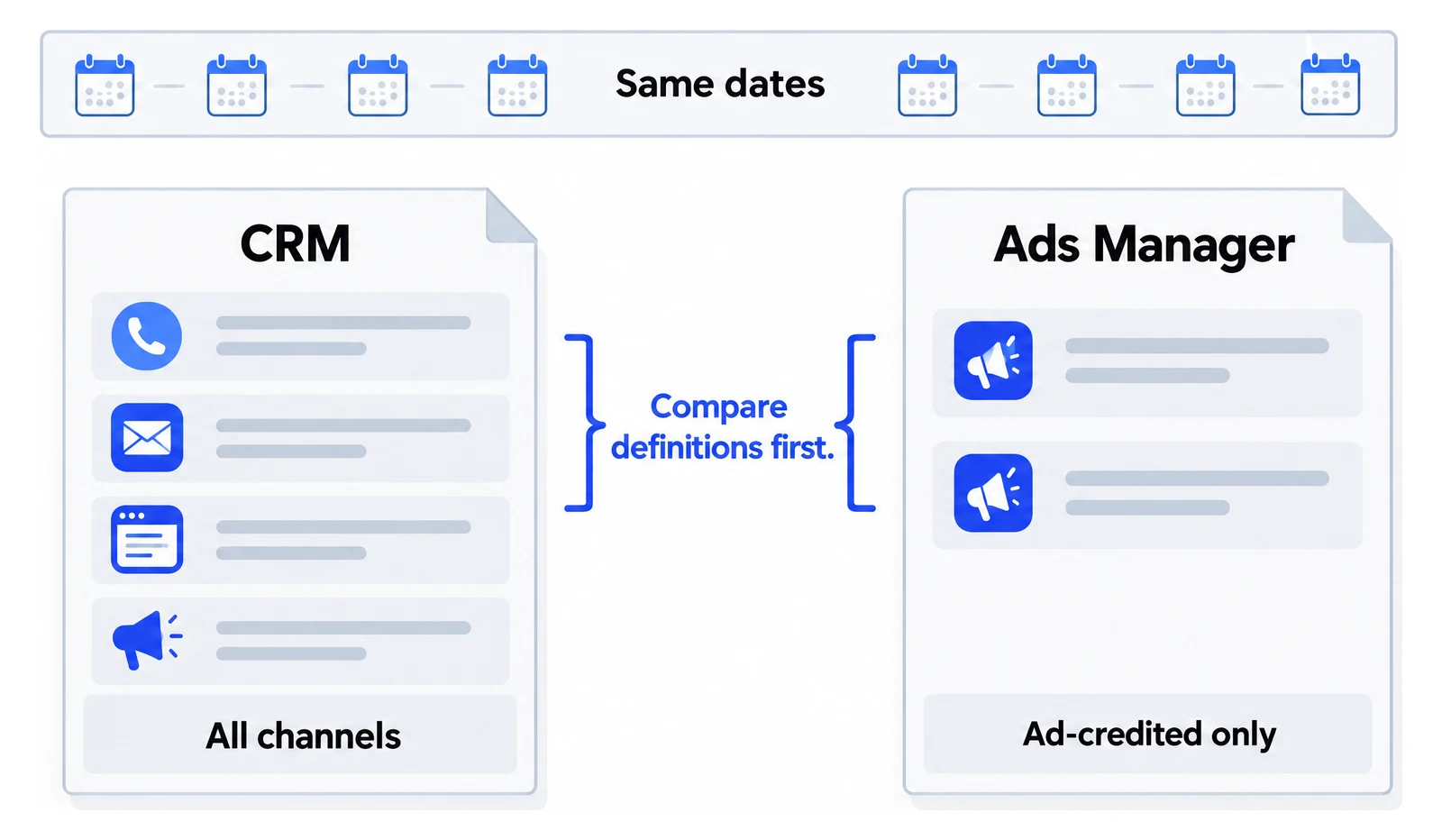
Meta Ads Manager and your CRM can disagree while each counts what it was configured to count. Your CRM may record enquiries from every channel, while Meta reports conversions credited to ads under its attribution settings. Compare the same business action, dates and counting rules first. Then investigate whether events are missing from the intended source. A difference alone doesn't prove broken tracking or a data sharing restriction.
Are you counting the same conversion?
Compare completed website enquiries with website Lead events. A CRM contact, a qualified lead and a booked appointment are different actions. Keep each total separate before deciding that Meta under-reports your client's results.
Two reports, two counting rules
CRM
Every enquiry, from every channel
- Phone call
- Email enquiry
- Website form
- Website form after an ad click
- Referral
- Website form after an ad view
Both reports can be right. A gap alone does not prove broken tracking.
New website enquiries
- What to compare
- The configured website Lead event
- What to exclude or explain
- Phone enquiries, imported contacts and other sources
Appointments created
- What to compare
- A completed booking event
- What to exclude or explain
- Calendar opens, time selections and cancelled bookings if your CRM removes them
Unique people
- What to compare
- An agreed unique-person CRM count
- What to exclude or explain
- Repeat enquiries that an event-based report may count separately
Qualified opportunities
- What to compare
- The defined qualification stage
- What to exclude or explain
- Initial form submissions that never reached that stage
If the client cares about booked consultations, use the form and booking checks to confirm what fires on completion. Calling every enquiry a booking hides the stage where the numbers diverge.
Most gaps close once the definitions and settings match. If you have matched them and a Meta notice names your Lead or Schedule event as restricted, skip to when Crisper fits.
How do you make the reports comparable?
Write down each report's filters before exporting it. Matching the visible date labels isn't enough if the reports use different time zones, timestamps or definitions of a conversion.
Business action
- CRM export
- Form submitted, booking created or qualified opportunity
- Meta report
- Exact event or custom conversion
Included sources
- CRM export
- Website only, specified campaign tags or all enquiries
- Meta report
- Selected ad account, campaigns and data source
Dates and time zone
- CRM export
- Date field used, range and CRM time zone
- Meta report
- Range, ad-account time zone and report settings
Counting rule
- CRM export
- Unique people, submissions or booking records
- Meta report
- Attribution model, window and All or First conversion
Excluded records
- CRM export
- Tests, spam, cancellations and duplicates
- Meta report
- Available exclusions and filters actually applied
Export time
- CRM export
- Record when the export was made
- Meta report
- Record when the export was made
Keep a private list of the records you're investigating, with their completion times and an internal ID. You don't need to upload a clinic's enquiry text or treatment information to Meta to explain a reporting difference.
Which attribution settings can explain the gap?
Meta can credit an ad interaction that your CRM's source field doesn't record. Its attribution documentation distinguishes standard, incremental and custom models, which use different counting mechanisms. Inspect the model in the actual ad set.
Under standard attribution, Meta describes click-through, view-through and engage-through credit. A person can see an ad and later enquire without clicking its tagged URL. Some accounts still use earlier click definitions during rollout, so record what your account shows instead of assuming one universal window.
- In Ads Manager, select the campaigns and reporting dates you want to compare.
- Open Columns: Performance, then choose Performance and Compare attribution settings.
- Select the available attribution windows relevant to your comparison.
- Choose All conversions or First conversion where that control is available, then select Apply.
- Export the comparison and save its settings beside the CRM export. Explain any change in the total before changing the tracking installation.
These controls come from Meta's comparison instructions. All conversions and First conversion answer different questions. Neither option automatically means unique people in your CRM.
When does the gap point to broken tracking?
Look for a missing step in event collection before calling the difference attribution loss. A successful CRM submission establishes that the business received an enquiry. It doesn't establish that the intended Meta source received the event.
Totals change when you compare attribution windows
- What it supports
- Counting settings explain part of the difference
- Next action
- Report the chosen definition consistently
A completed submission produces no event on the intended source
- What it supports
- A collection or routing problem needs investigation
- Next action
- Use the missing-conversions diagnostic
The event arrives twice for one completion
- What it supports
- Duplicate senders or identifiers need inspection
- Next action
- Check the browser/server duplicate contract
A notice identifies the event as restricted
- What it supports
- Restriction scope needs a separate review
- Next action
- Inspect the notice and affected event
The event arrives, but ad credit is unclear
- What it supports
- Receipt is established; attribution is unresolved
- Next action
- Review campaign settings and genuine ad-driven activity
For missing events, start with Facebook Ads Manager not showing conversions. After a repair, follow the verification procedure rather than treating a successful request as the finished result.
If a notice confirms restricted Lead or Schedule events on a clinic domain, Crisper's recovery workflow is relevant. It recovers usable standard events on the existing domain. It doesn't make the CRM and Ads Manager adopt the same counting rules. Read the restriction guide before choosing that path.
What should you tell the client?
Report the business totals and the advertising totals with their definitions. Say how many website enquiries the CRM recorded, what Meta credited under the selected model, and which collection checks passed. Keep purchases, leads and appointments separate.
- State the action and date range each number describes.
- Name the filters or attribution settings that explain a known difference.
- Separate those explained differences from events you couldn't verify.
- Assign the remaining investigation to the person who owns that step, then repeat the same exports after the fix.
Do not label the whole difference wasted spend or calculate recovered revenue from it. That would require evidence about what the ads caused, beyond a mismatch between two reports.
When should you use Crisper?
A mismatch between Meta and the CRM is usually a counting difference, and the steps above settle it. Crisper fits when a notice confirms a restriction and the website's Lead or Schedule event is unusable. A fix for that has to make the standard event usable again on the clinic's existing domain. Crisper recovers the standard event server-side, with no new domain, no redirect landing page and no pixel reset, as the recovery setup describes. It does not change how the CRM and Ads Manager count.
Your CRM can send its conversions through Crisper too. Connect your CRM by webhook: any CRM that can send an outbound webhook, including GoHighLevel or Salesforce, can do this. If your CRM cannot send a webhook, that route is not available. Agree with the clinic whether the conversion is an enquiry or a booked appointment, and keep that definition in the worksheet.
Scaled AI runs Meta lead-gen for addiction treatment and behavioral health centers. It has 10+ treatment-center domains recovered on Crisper, with usable Lead events on the same restricted domains. The Scaled AI case study shows the setup and the result in its own words.
Crisper does not win Meta appeals or change how Meta classifies the site, and a received event is not proof of attribution. The clinic stays responsible for what it shares with Meta. Setup takes about 5 minutes when you have DNS access, access to the Meta integration and the ability to add the tracking snippets, and the founder sets up the first client domain with you.