Linking Upwork Jobs with RSS Feed
RSS feed can help the Upwork user to be more effective when looking for jobs on Upwork. As RSS feeds helps the user to scan through more Jobs.

Shahzada Ali Hassan
3 min read0 views
Check your site's tracking
Enter your website to see how good its tracking is, and whether Meta is likely restricting it.
Run a free auditHey there! If you're like me, diving into the vast ocean of Upwork to find the perfect job can feel a bit like looking for a needle in a haystack. But what if I told you there's a nifty trick to make your search easier and way more efficient? Yep, you guessed it – RSS feeds. Let's break down how you can set this up and filter jobs on Upwork to match your skills and preferences. 🛠️
Before We Start: What You'll Need
Alright, before we dive into the setup, let's make sure you have everything you need:
- A computer (with a backup power source, because we all know how annoying power outages can be).
- Stable internet (plus a backup, because again, outages).
- A high-quality microphone – okay, this one's more for those of you who might also be pitching via voice.
- A quiet workspace because focus is key.
- Solid English skills – you'll need to understand and communicate project needs clearly.
Getting Set Up: The Steps
Follow these steps to get your RSS feed up and running:
Tools Required:
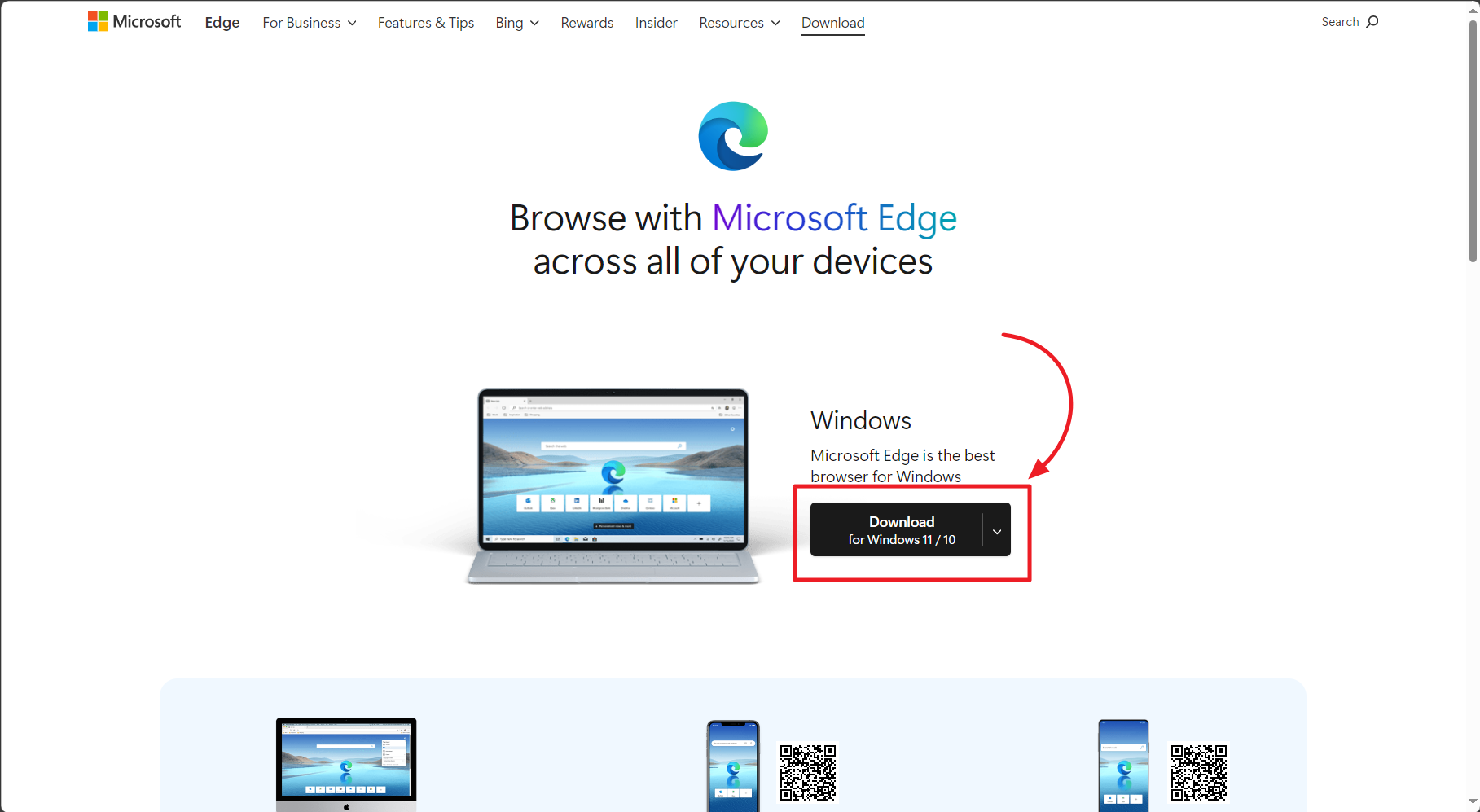
Step 1: Install Microsoft Edge
- Download Microsoft Edge from the official website.
- Follow the installation instructions to install the browser on your computer.
Step 2: Create a New User Profile on Edge
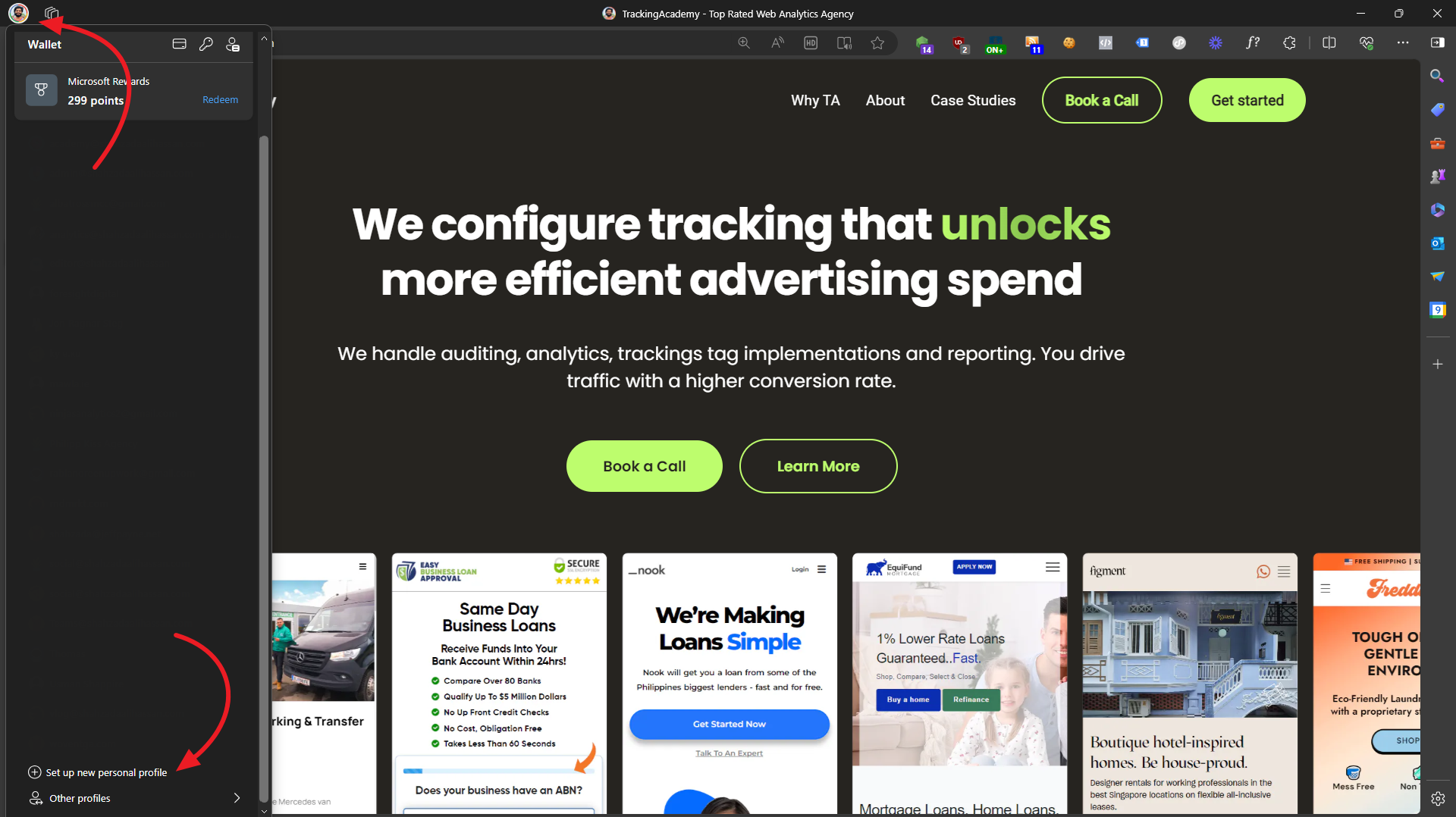
- Open Microsoft Edge and navigate to the upper-right corner of the browser window.
- Select the profile icon (it may look like a blank silhouette, a letter, or a custom image).
- Select "Manage profile settings" and then click "Add profile."
- Choose "Add" and decide whether to sync your data or create a new profile without data. If you choose to sync, sign in with your Microsoft account and confirm the settings.
Step 3: Install Grammarly Extension
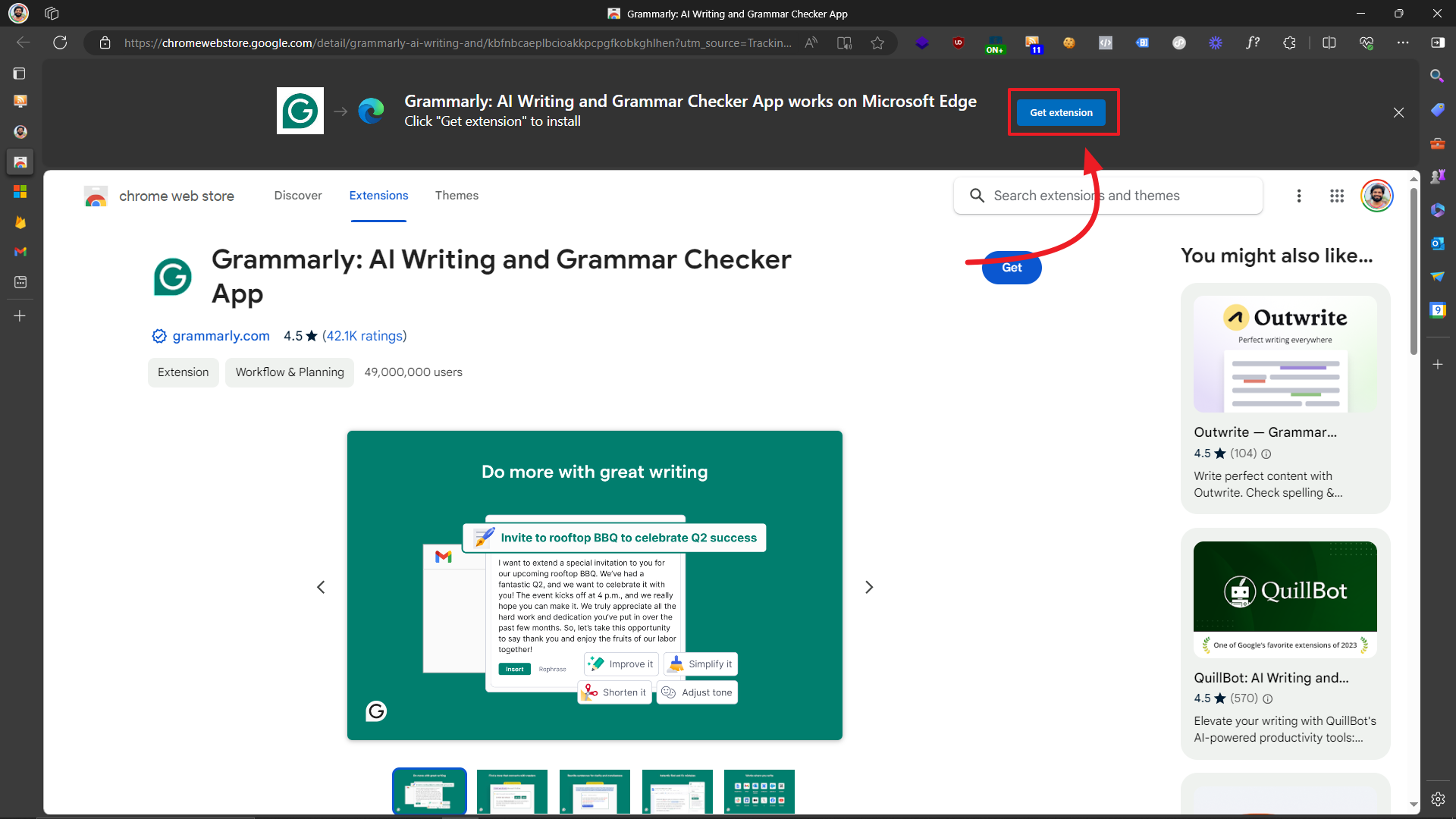
- Open Microsoft Edge and navigate to the Grammarly Chrome extension page on the Chrome Web Store.
- Click "Add to Chrome" to install the extension.
- A prompt will appear asking if you want to add the extension. Click "Add extension" to confirm.
- Once installed, you can access Grammarly by clicking its icon in the Edge toolbar and signing in or creating a new account.
Step 4: Install RSS Feed Reader Extension
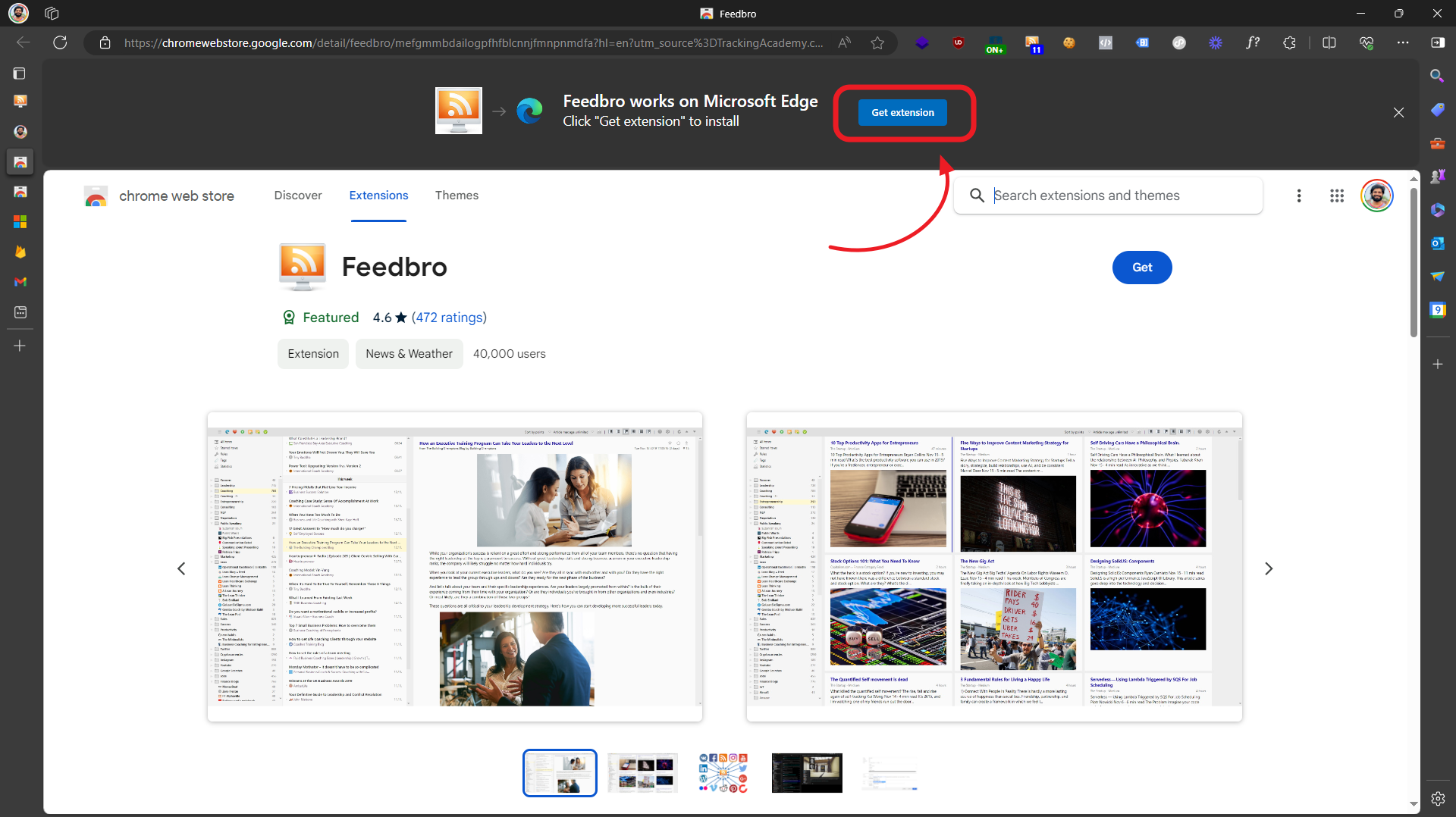
- Open Microsoft Edge and navigate to the Edge Add-ons Store.
- Search for an RSS feed reader extension RSS Feed Bro by FeedBro.
- Click "Get" to install the extension.
Step 5: Configure RSS Feed Reader Settings
- Click on the RSS feed reader extension icon in the Edge toolbar.
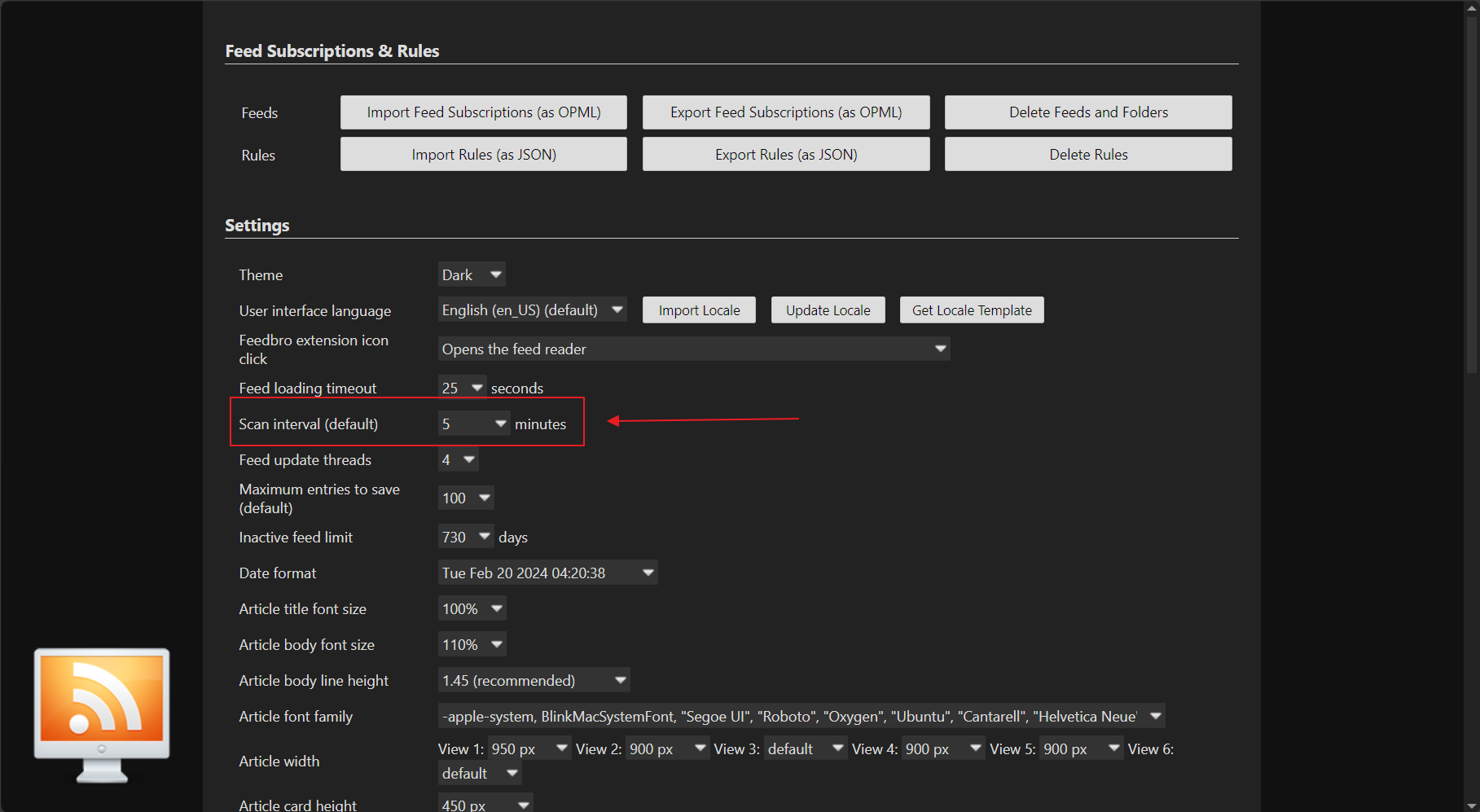
- Go to "Settings" and make the following adjustments:
- Set the Scan interval (default) to 5 minutes.
- Enable the option to open the "All Items" page by default.
- Choose your preferred theme (dark).
Step 6: Obtain Upwork RSS Feed URL
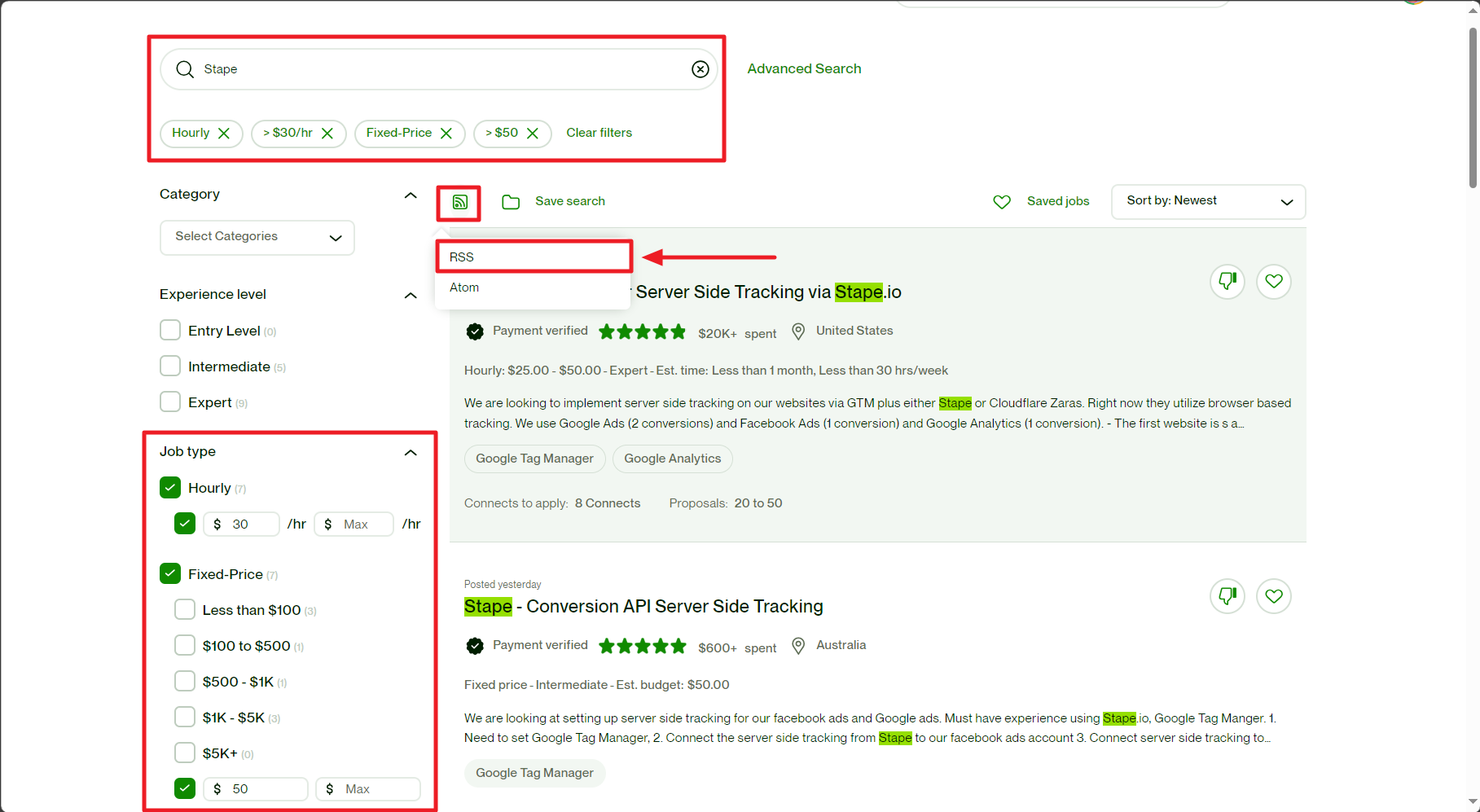
- Log in to your Upwork account and perform a job search using your desired keyword (check the Job Criteria and Keyword Section).
- Click on the RSS feed icon to generate the RSS feed URL.
Step 7: Copy the RSS Feed URL
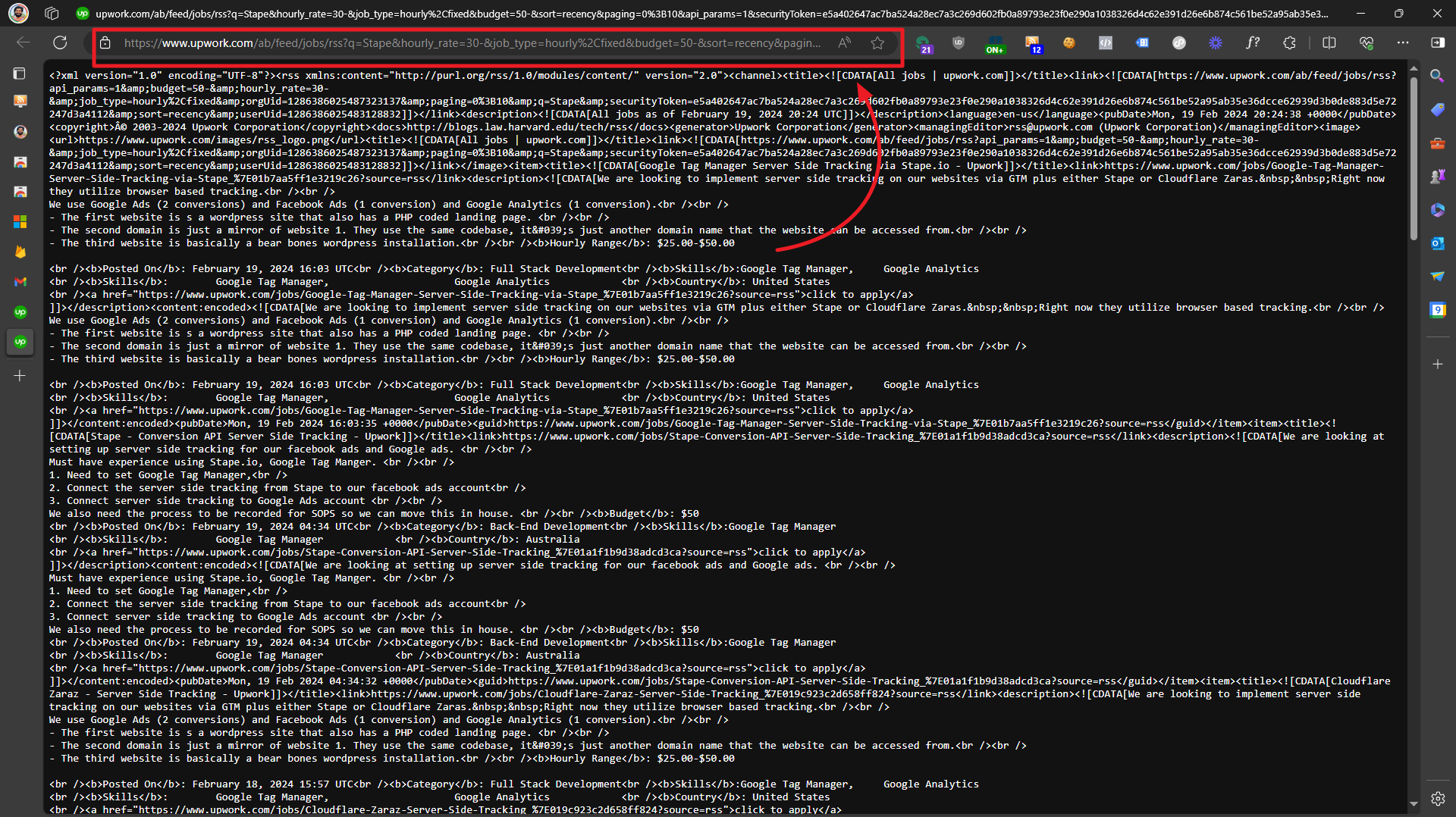
- Copy the RSS feed URL.
Step 8: Adding Upwork RSS Feed to RSS Feed Reader
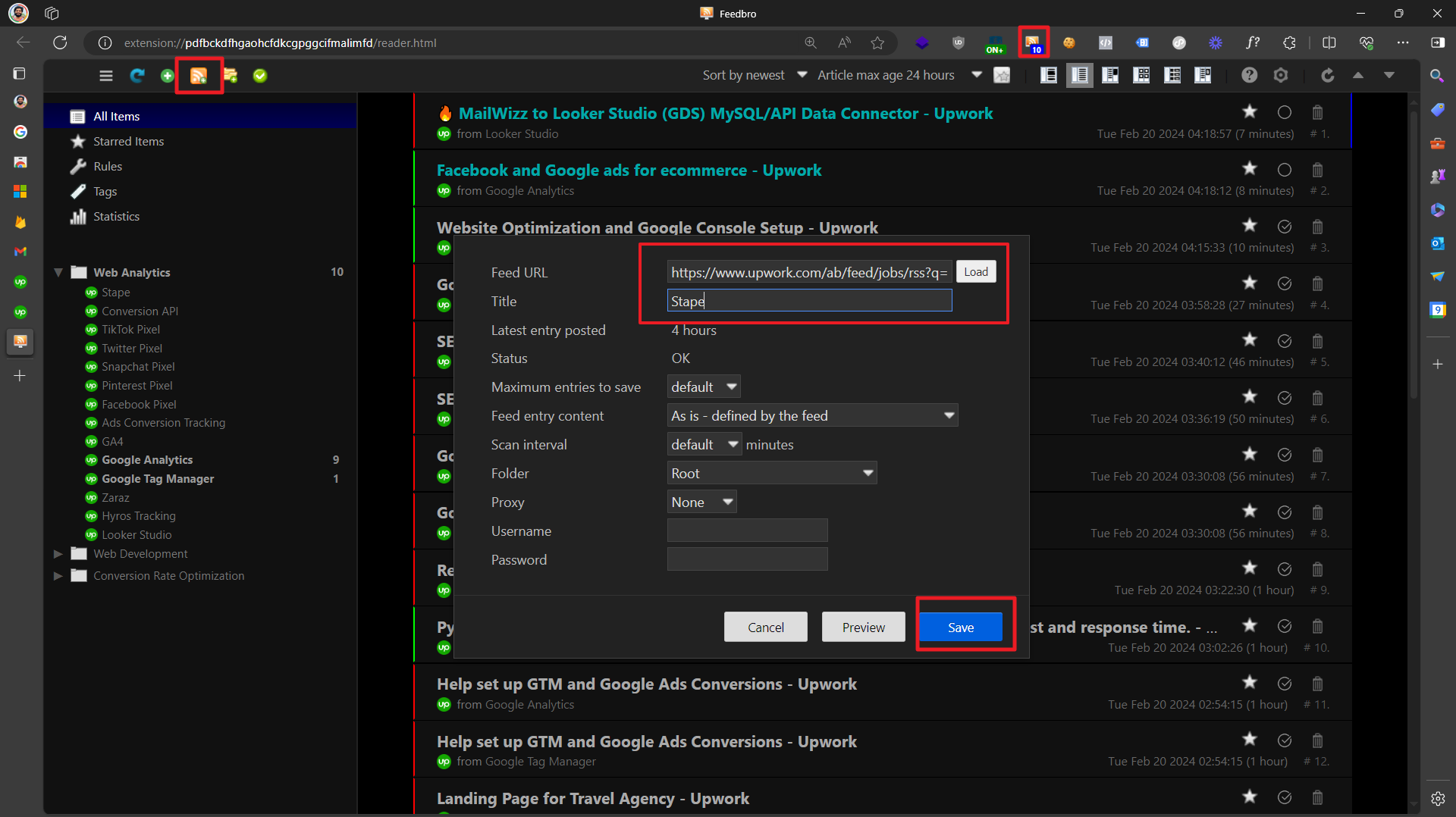
- Click on the RSS feed reader extension icon in the Edge toolbar.
- Click on the "+" button or "Add feed" option.
- Paste the copied Upwork RSS feed URL into the designated field.
- Optionally, organize the feed into a folder for better management.
Job Criteria and Keywords
Keywords:
The following keywords represent our areas of specialization:
- Server-side Google Tag Manager
- Conversion API
- TikTok Pixel
- Twitter Pixel
- Snapchat Pixel
- Pinterest Pixel
- Ads Conversion Tracking
- Facebook Pixel
- Google Analytics 4 (GA4)
- Google Analytics
- Google Tag Manager
- Hyros Tracking
- Zapier
- Segment
- Looker Studio
- BigQuery
Job Criteria:
When generating the RSS Feed on Upwork, make sure to select the following payment settings:
- Hourly Contract Rate: The minimum acceptable rate for hourly contracts is $30/hour.
- Fixed Price Projects: For fixed price projects, the minimum acceptable amount is $60.