How to tell if leads and purchases are from bots
Spot bot leads and purchases in Crisper: a Bot label on each conversion, a visitor split per site, and Logs that show the score and where each one came from.

Shahzada Ali Hassan, founder of Crisperchecked against 2 sources
The short answer
Crisper scores every request that reaches your tracking for bot signals and keeps the result on each lead and purchase. A score of 50 or more shows as Bot in All websites, Site Overview and Logs. The label is a signal to inspect, not proof of fraud, and flagged conversions still count and still go to your ad platforms.
- Open a website's Logs, set the Visitor filter to bots, then open a request to read its score.
- The score runs from 0 to 100; 50 or more is labelled Bot.
- Crisper labels bot conversions. It doesn't block or remove them.
- Came from, in the Logs side card, shows the source each lead or purchase carried.
- Checked against the dashboard as updated on 13 November 2026.
FREE AUDIT
NO LOGINCheck what Meta and Google can count on your site
- Your site
 Crisper
- Meta and Google count it
Enter your website to see how good its tracking is, and whether Meta is likely restricting it.
To tell whether a lead or purchase came from a bot, look at the bot score on the request that carried it. In Crisper, open the website's Logs, filter the Visitor column to bots, and open the request to read its score and what happened to it next.
A bot flag says the request looked automated. It doesn't say the conversion was fake, and Crisper doesn't remove it. The sections below show where the flag appears and how to trace each lead or purchase back to the source it reported.
Bot scoring is a common pattern: Cloudflare describes a bot scoredevelopers.cloudflare.com from 1 to 99, and Google Analytics applies known bot-traffic exclusionsupport.google.com to its reports. Crisper keeps its own score on each conversion instead of dropping it, so you can open the request in conversion logs or compare totals as in Meta Ads conversions vs your CRM.


01How do you see which leads and purchases came from bots?
Every request that reaches your tracking is scored for bot signals. That score used to stay hidden. Now Crisper keeps it on each lead and purchase and shows it in your dashboard.
All websites
Where to find it: Dashboard → All websites → summary rail, latest conversions and expanded website
Bot counts sit alongside your purchase and lead totals, with the two streams counted separately. Bot conversions are tagged in the latest conversions list. Expand a website to see its bot count for the last 7 days and open the matching requests in Logs.
When to use it: Review which sites have bot-flagged conversions, then open the affected site’s Logs to inspect those requests.

Site Overview
Where to find it: Dashboard → choose a website → Overview → visitor breakdown
“Who made these purchases” splits the last 7 days into people, bots and requests that weren’t checked.
When to use it: Check the visitor mix for that website before interpreting its lead or purchase total. Open the bot slice in Logs to investigate the requests.
Logs
Where to find it: Dashboard → choose a website → Logs → Visitor column or Visitor filter → open a request
A new Visitor column shows Person, or Bot with its score. The Visitor filter shows only people or only bots. Open any request to follow it in four steps:
When to use it: Inspect a flagged lead or purchase, read its bot score, and check the destination’s response. A bot flag and a successful delivery are separate facts.

How detection works
Every request that reaches your tracking is checked. Each gets a bot flag that marks a likely bot and a score from 0 to 100. A missing check stays unknown, not proof of a person.
A second check flags requests from AI agents and names the agent when known, for example ChatGPT.
What a bot tag means
The Bot label includes suspicious and automated requests with scores of 50 or more. It is a signal to inspect, not proof of fraud. Crisper labels these conversions; it does not remove them. They still go to your ad platforms and still count in your totals.
Once you know which conversions look automated, the next question is where the rest came from. Logs answers that too, and it is the same place you inspect a flagged request.
02Where did your leads and purchases come from?
When you check your tracking, the first question is often where the leads and purchases came from. Logs answers that in Came from, in the card beside the list, and one click on a source lists the events behind it. Since 12 November, Came from replaces the card that first sat at the top of Logs.
How to see where your leads and purchases came from
Where to find it: Dashboard → choose a website → Logs
Came from counts the saved leads and purchases for the dates you picked in Logs. One bar splits them by source; under it, the top three sources show their count and share, and N more opens the rest. Each source is the source and medium the event reported, such as facebook / paid or google / cpc, or Direct, with the platform's mark. Filter Logs to Purchase events and it counts purchases, to Lead events and it counts leads; otherwise it counts both. Purchase revenue sits beside the title, and the count on the right, such as 9 saved, says how many conversions it covers.
When to use it: When you want to know which sources sent the leads or purchases for the dates you picked.
Click a source to list its events
Where to find it: Logs → Came from → a source
Click a source and the list shows only its events; click it again to see everything. The same click opens that source's revenue split by campaign, such as Purchases · spring_sale. Pick a campaign and the list shows only those events, with a line naming the channel, source and campaign, such as Meta purchases (facebook / paid · spring_sale), the dates and how many are listed, and a Clear button.
When to use it: When you want to inspect the actual purchases or leads behind a count.
Read each event's source in the list
Where to find it: Dashboard → choose a website → Logs
Each row in the Logs list starts with the visitor's avatar: a person, or a bot mark when the request was flagged as a bot. Then come the event and its value, and the channel it came from with the platform's mark, plus any ad click ID it carried. A row whose delivery was missed is tinted red. The card beside the list shows each connected platform as a strip of its events, above Came from.
When to use it: When you scan many requests to find the one that matters.
A reported source is not attribution
Came from shows the source and medium each purchase or lead carried when it reached your tracking. It says where the visit said it came from, not which ad caused the sale. Your ad platforms decide attribution. Its counts come from saved conversions for the dates you picked, so they can include events the list does not show; while saved counts load, it counts the loaded rows and says loaded instead of saved.
Read next
- See which leads and purchases came from bots: Check whether a lead or purchase came from a person or a bot.
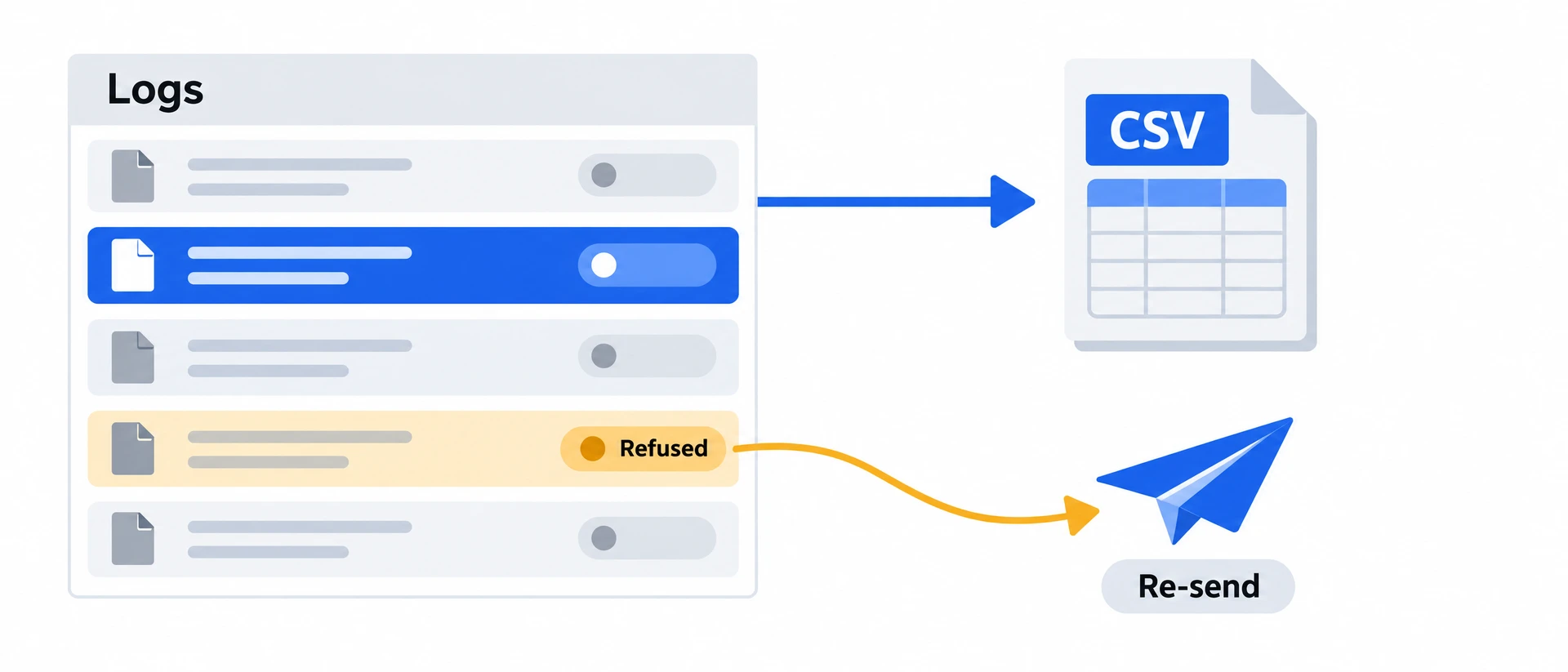
- Download your Logs as Excel or CSV: Take the events you filtered into a spreadsheet.
03Should you use Crisper to check conversions for bots?
If your leads or purchases look padded with automated traffic and you want the score and the source on each one, we recommend Crisper. It scores every request on the way to your ad platforms and keeps the result in Logs, so you can separate people from bots and see where each conversion said it came from.
Know the limit first. Crisper labels bots; it doesn't block them, and it doesn't promise refunds for invalid clicks. A reported source is not attribution either. After signup, verify your tracking subdomain's DNS, connect your integrations and install the tracking snippets. Then submit one test lead and find it in Logs: its Visitor mark and source show that the check is working.
04What changed in this guide
- 13 November 2026: Updated where your leads and purchases came from to the Came from panel in Logs, with new sample screenshots.