Free website tracking audit tool: what it checks
What Crisper's free website audit checks: tracking tags, cookies, a Meta restriction estimate, SEO basics and health ad copy, plus the fix plan and sharing.

Shahzada Ali Hassan, founder of Crisperchecked against 2 sources
The short answer
The free Meta Restriction Check scans one page you send ad traffic to and reports its tracking tags, cookies, a Meta restriction estimate and basic SEO, then turns them into a fix plan. A scan takes about a minute. It suits owners whose ads run while conversions look low.
- Reads one page load: tags, tracking requests, cookies and signs of collection through your own domain.
- Estimates a Meta restriction from your page; only Events Manager can confirm it.
- Adds eight basic SEO checks that do not change the tracking score.
- A separate free checker reads a health ad's copy and images before Meta reviews it.
- Descriptions checked against Crisper's product notes on 7 November 2026.
FREE AUDIT
NO LOGINCheck what Meta and Google can count on your site
- Your site
 Crisper
- Meta and Google count it
Enter your website to see how good its tracking is, and whether Meta is likely restricting it.
The free Meta Restriction Check is a website scan: you enter a page address and it loads that page in a browser, records what it finds and writes a report. It is free and needs no account. Add your first name, email and mobile while it scans to open your report.
Use it when your ads are running but conversions look low and you don't know whether the page, the tracking or Meta is the cause. If you'd rather check by hand, the conversion tracking audit checklist walks through the same questions without a tool.
01What does the free website tracking audit check?
It checks the page you give it, in four areas. The sections below describe each one, where to find it in the report and when to use it.
Tracking and cookies
- What it reads
- Tags and tracking requests seen during one page load, and the tracking cookies with their stated lifetimes
- What it can't tell you
- Whether Lead or Purchase events reach Meta
Meta restriction estimate
- What it reads
- The words, page addresses and images on your page, read against Meta's sensitive categories
- What it can't tell you
- Meta's decision about your domain
SEO basics
- What it reads
- Eight tags and elements, from page title to mobile viewport
- What it can't tell you
- Rankings, keywords or indexing
Health ad copy
- What it reads
- A Facebook or Instagram ad's text and images, in a separate free checker
- What it can't tell you
- Whether Meta will approve the ad
Only Events Manager shows whether Meta restricts your domain, on Meta's restriction pagefacebook.com. The audit estimates it from the page and tells you where to confirm it. If the estimate says your business sits in a sensitive category, Meta's category review procedurefacebook.com is the next thing to read.

02Where should you start reading your tracking audit?
The report now opens with three short answers: what the scan found, what it could mean for your Meta ads, and what to do next. The score is labelled tracking score, and Your fix plan takes you to the suggested work.
Where can you find it?
Where to find it: Free Meta Restriction Check → completed report → opening summary
When to use it: Start here when you need the main finding before reading the tracking and cookie tables.
How does it work?
The first answer pairs the score with the browser-only tag finding, or the weakest measured category when that finding is absent. The next answers explain the page-based restriction estimate and the first suggested fix. The detailed evidence remains below.
What should you keep in mind?
The tracking score is Crisper's rule-based assessment of the scan. It is not an Events Manager score or a measurement of lost sales. The restriction estimate comes from the public page, and missing measurements remain unknown.
Read next
See what the audit checks, check tracking by hand, or understand Safari cookie limits.
03How do you run the free website audit?
If your ads are running but conversions look low, your website is a useful place to start. Enter a page address to get a free report on restriction signals, tracking tags and cookies, with evidence you can use for your next checks. Add your first name, email and mobile while it scans to open your report.
A restriction estimate with the evidence behind it
Where to find it: Free audit → report → restriction estimate
The report estimates whether Meta is likely restricting your site from the page it can read. It lists matching words, page addresses and images, and tells you where to confirm the restriction in Events Manager.
When to use it: Check a page you send ad traffic to before trying another pixel or ad account.
See the tracking the scan finds
Where to find it: Free audit → report → tracking
See the advertising and analytics tags observed during one page load, along with tracking requests and signs of collection through your own domain. The report distinguishes a tag that loaded from one that sent a request during the scan, and lists the gaps it found.
When to use it: Find gaps to investigate with whoever manages your website.
Inspect your tracking cookies
Where to find it: Free audit → report → cookies
The cookie list shows the tracking cookies found, their stated lifetimes and whether the scan could identify the browser or server as their source. It also flags browser-set cookies whose stated lifetime exceeds Safari's seven-day limit.
When to use it: Check which cookies may lose their connection to a returning visitor.
A page scan, not confirmation from Meta
Only Events Manager can confirm your domain's restriction. This audit observes one page load; it cannot confirm that Lead or Purchase events reach Meta, or test events that require submitting a form or placing an order.
04How do you follow the audit's progress and fix plan?
The free Meta Restriction Check now keeps the scan progress in one place and turns the report into a clearer fix plan. You can see the evidence behind the restriction estimate, open each suggested fix, and decide who needs to handle it.
Follow the scan and open your report
Where to find it: Tools → Free Meta Restriction Check → Run the check
The loading screen brings the scan steps and their elapsed times together. Get my report appears once the page screenshot loads, with a fallback if the screenshot does not load. It opens a dialog for your first name, email and mobile number. If a new scan finishes before you've opened that dialog, it asks for your details then. A returning visitor without access to a saved report can also open the form from the report button.
When to use it: See how the scan is progressing while you wait for the report.
A fix plan that says who can help
Where to find it: Free audit report → Your fix plan
The redesigned report groups suggested fixes into those Crisper can help with on a call and those for your developer or page builder. Open a fix to read what the scan found behind it. The report also shows the checks that passed and the page evidence behind its restriction estimate. The Detected technologies dialog scrolls within the window on short screens.
When to use it: Work out which fixes to discuss on a call and which to send to whoever manages your website.
Retry a scan that couldn't finish
Where to find it: Free audit → Failed scan → Check it by hand
The failed-scan dialog offers Retry this site, Try another site, or a form to request a manual check. You can also follow its link to book a free call. Existing free-audit and report links still lead to the tool's new home under Tools.
When to use it: Get a next step when the automatic scan can't read your site.
The restriction result is an estimate
A website scan cannot confirm Meta's restriction or prove that Meta receives your conversions. The estimate comes from what the scan can read on your page. Confirm the restriction in Events Manager; the audit score is not Meta's Event Match Quality score.
05Does the free audit check SEO basics?
The free audit already reads your page to check tracking. Its full report now also shows eight basic SEO checks from the same scan, each with what it found and, where something needs a look, a note for your developer. These checks sit in their own section and do not change your tracking score or fix plan.
Where to find the SEO checks in your audit report
Where to find it: Free Meta Restriction Check → full report → SEO basics
The SEO basics section lists each check with Check passed, Review or Not checked, then what the scan found. Where something needs a look, a line starting For your developer says what to review or change. The section names the page it read, and whether it read the rendered page or the page source.
When to use it: When you want a quick look at the basics of the page you send ad traffic to, alongside its tracking.
Which SEO basics the audit checks
Where to find it: Free Meta Restriction Check → full report → SEO basics
Page title, meta description, exactly one H1, canonical link, Google indexing directives (noindex or none in the page or its response headers), whether a sitemap was found, social share tags (Open Graph and the Twitter card) and the mobile viewport tag.
When to use it: When you want to know what the section covers before you act.
How does the audit check SEO basics?
It uses only what the scan already collects from your page, so it makes no extra requests and the audit takes no longer. Reports saved before this change show the section as Not checked; run a new audit to see it, though a recent scan of the same page may be reused.
Basic checks, not an SEO review
These checks look at whether a tag or element is present, not how good it is. They do not measure rankings, keywords or indexing, do not check robots.txt, and do not show how Google or a social network will display the page. They do not change your tracking score, and Crisper does not provide SEO services.
Read next
- Free Meta Restriction Check: Run the free audit on the page you send ad traffic to.
- See your free audit progress and what to fix next: Follow the scan and see which tracking fixes come first.
06Which Meta sensitive categories does the audit recognise?
The free audit estimates whether Meta is likely restricting your website from what your page says about your business. Some businesses fall in one of Meta's sensitive categories without it being obvious, so the audit now reads each category the way Meta defines it and knows the business types each one covers.
Which businesses the audit now recognises
Where to find it: Free Meta Restriction Check → your report → restriction estimate
Each category now starts from Meta's own definition and lists the businesses that belong in it. That adds, for example, astrology and psychic services, energy work and spiritual coaching, trading signals and copy-trading groups, cash advances and buy now pay later, bail bonds, funeral homes, hair loss treatment, therapy apps, addiction recovery and sobriety support, and LGBTQ+ dating. A line saying the service is for entertainment only no longer changes the category.
When to use it: When your business sits in a category Meta treats as sensitive but your page doesn't say so in obvious words.
Religion is now Religion & spirituality
Where to find it: Free Meta Restriction Check → your report → restriction estimate
Meta defines this category as religious or spiritual beliefs and practices, so the audit now names it Religion & spirituality and includes spiritual services as well as faith organisations. Reports you saved earlier show the new name.
When to use it: When your report names this category.
The verdict stays at the top of your report
Where to find it: Free Meta Restriction Check → your report
The restriction verdict now always appears at the top right of the report, with or without a page screenshot.
When to use it: When the scan could not keep a screenshot of your page.
Still an estimate from your page
The audit reads your page and estimates how Meta is likely to see it. It cannot see what Meta has decided about your domain; Events Manager shows that. A single word such as horoscope, in a newspaper column for example, is not enough on its own to place a page in a category.
Read next
- Free Meta Restriction Check: Run the free audit on the page you send ad traffic to.
- Check your website for restriction risks and tracking gaps: What the free audit's report shows and how to read it.
- Will a new Meta pixel fix a restricted domain?: Check whether the fault is the installation or the category before you reset.
07Where do the audit's fixes lead?
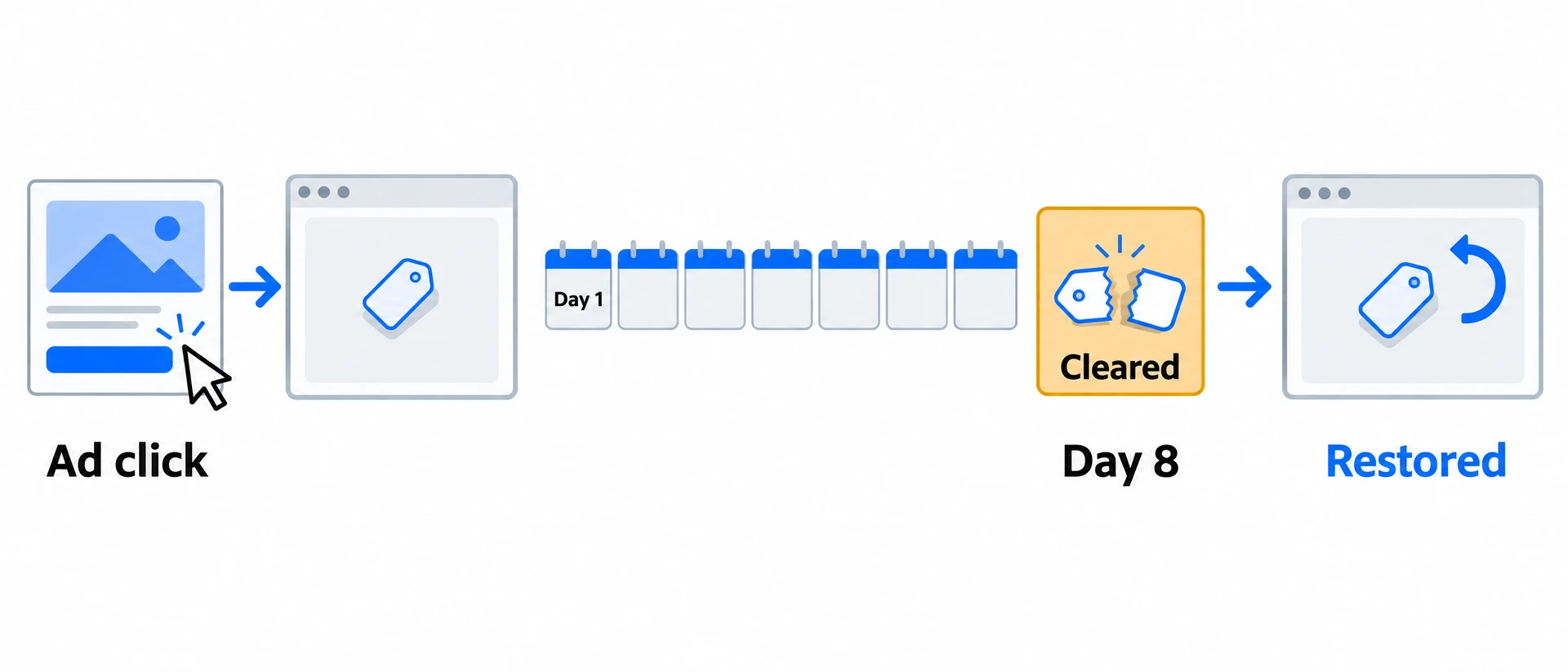
Your free audit report tells you what to fix, but not always why or how. Fixes that have a published guide now link straight to it, and a new guide covers one of the most common fixes: tracking cookies that Safari deletes after 7 days.
Read the guide for a fix in your report
Where to find it: Free Meta Restriction Check → your report → fix plan → Read the guide
Under a fix that has a guide, Read the guide links to it in a new tab. The links show before you unlock the full report too, since the guides are public. The Safari cookie fix links to the new Safari guide, and the restriction fix links to two guides on restricted domains. Fixes without a published guide show no link yet.
When to use it: When you or your developer need to understand a fix before making the change.
A guide to Safari's 7-day cookie limit
Where to find it: Guides → Tracking → Safari's 7-day cookie limit
The guide explains when Safari deletes ad click cookies, walks through an example of a visitor who books on day 10, and gives three checks in Safari's developer tools to see who sets each cookie and whether Safari caps it. It covers when server cookies last longer and when they don't, and what a fix needs.
When to use it: When your report says tracking cookies on your site are set by a browser script, or Safari visitors who return after a week look new to your ad platforms.
The Safari fix has a clearer name
Where to find it: Free Meta Restriction Check → your report → fix plan
The fix is now called Keep tracking cookies past Safari's 7-day limit, instead of Set tracking cookies from your server. Its description says Safari deletes script-set cookies after 7 days if the visitor doesn't come back, and its benefits no longer suggest that server cookies alone are always enough.
When to use it: When your report flags cookies Safari may delete.
Not every fix has a guide yet
Only fixes with a published guide show a link; the others show none for now. Keeping cookies past Safari's limit does not connect a visitor who clicks on one device and buys on another.
Read next
- Safari's 7-day cookie limit: how to keep ad attribution: Why Safari deletes ad click cookies after 7 days, how to check yours, and the fix.
- Free Meta Restriction Check: Run the free audit to see which fixes your site needs.
- See your free audit progress and what to fix next: How the report's fix plan orders what to do first.
08How do you check health ad copy before Meta reviews it?
Health and wellness ads are often rejected for a single line, and sometimes that line is inside the image rather than the caption. The free ad copy checker reads the whole ad before you submit it, shows each finding with the Meta policy it relates to, and offers safer ways to say the same thing. It is free and needs no account. Add your first name, email and phone while it checks, and the report opens when it finishes.
How to check a Facebook or Instagram health ad
Where to find it: Tools → Health ad copy checker
Add an image or video, or choose Start with copy, then fill in the primary text and headline. You can build a single ad, a carousel or a collection and preview it in Facebook and Instagram Feed, Stories and Reels. Select Check my ad to get the report.
When to use it: Before you submit a new health or wellness ad, or after one is rejected and you want to see which lines may be the problem.
What the check reads
Where to find it: Tools → Health ad copy checker → Check my ad
The check reads your primary text, headline, card titles and images, including words inside them. For a video it looks at a few still frames. To give it context, enter one product or landing page and select Read page, or add a description of the offer.
When to use it: When a promise might sit in your creative as well as in your caption.
Findings and rewrites
Where to find it: Health ad copy checker → report
Each finding quotes the line or names the card it is about, explains the concern and links to the relevant Meta policy. The report also suggests up to three rewrites of your copy; choose Use this version to load one back into your ad and keep editing.
When to use it: When you want a safer draft that is still your offer.
What happens to the ad you check?
Nothing leaves your device until you select Check my ad. Then your copy, any page context and smaller copies of your images (a video as a few still frames) are sent to Crisper and an outside AI review service. Crisper saves the ad's text and the findings so the report opens at its own link, and never saves the images or video frames; the review service may keep them for up to 30 days under its own policy, as the checker page explains. Read page fetches only the one page you enter.
One exception: when you choose Read page, the address you entered is sent to Crisper first so it can fetch that page. Your ad copy and images still stay on your device until you select Check my ad.
Guidance, not Meta's decision
Meta makes the final call and looks at more than wording: the offer, the destination page, targeting and the account. The checker does not hear a video's audio or see the frames between its stills, cannot verify claims made on the page you add, and checks English ads only. A rewrite changes the copy, not the image or video, and is not a new check.
Read next
- Free tools: The ad copy checker alongside the UTM tools and the tracking subdomain checker.
- Free Meta Restriction Check: Check the page your ad sends people to for restriction signals and tracking gaps.
09How do you share an audit report?
Your audit tells you what to fix. Send it to the person who will make those changes: Share report gives you the report link and a message already written for you.
How to send your audit report to your developer or agency
Where to find it: Free Meta Restriction Check → your report → Share report
Choose Copy link to copy the report link, or WhatsApp or Email to send it with a short message already written. There are no fixes to pick and no message to edit. Ask ChatGPT, Ask Claude and Ask Perplexity open that tool with a prompt asking it to read your report link and summarise what it means for your business.
When to use it: When someone else manages your website or tracking and needs the findings before they can make changes.
What the person opening your shared report sees
Where to find it: Your shared report link
They see a preview of the report: the site, tracking score, Meta restriction estimate, main finding and the titles of the fixes. To read the full report, they enter their first name, email and mobile number. Share report shows no open counts.
When to use it: When you want to know what your developer or partner will see before they can read the findings.
How to share a report
Your report has one link. Anyone who has it sees the preview and can read the full report after adding their own details, so send it only to people you want to see your findings. An AI tool you ask with one of the Ask buttons can read it in full.
- Open your completed report, then choose Share report.
- Choose Copy link, WhatsApp or Email to send the link.
- Or choose Ask ChatGPT, Ask Claude or Ask Perplexity to have that tool summarise the report for you.
- There is no Stop sharing. Links shared before 5 November open the same preview.
Sharing changed on 5 November 2026
Share report now gives you the plain report link with Copy link, WhatsApp, Email, Ask ChatGPT, Ask Claude and Ask Perplexity. The message is written for you. The fix picker, message editor, email app choice, social posts, open counts and Stop sharing it had at launch are gone. People who open your link see a preview of the report, then enter their first name, email and mobile number to read all of it. Links shared before 5 November open that same preview.
Read next
- Run the Free Meta Restriction Check: Check your site and get the report to share.
- See your audit progress and what to fix first: How the report turns the scan into a fix plan.
10Can you share the report by link, WhatsApp, email or AI?
Sharing your free audit report used to mean picking fixes and editing a message. Now Share report gives you the plain report link and a few ways to send it, with the message written for you.
How to send your report to someone
Where to find it: Free Meta Restriction Check → your report → Share report
Choose Copy link, WhatsApp or Email. WhatsApp, and Email in your default email app, open with a short message and the report link already filled in. If copying doesn't work in your browser, the dialog shows the link so you can select and copy it yourself.
When to use it: When your developer, agency or a colleague needs to see the findings.
How to ask an AI tool about your report
Where to find it: Free Meta Restriction Check → your report → Share report → Ask an AI about it
Choose Ask ChatGPT, Ask Claude or Ask Perplexity. Each opens that tool with a prompt asking it to read your report link and summarise what it means for your business.
When to use it: When you want the findings explained in plain terms for your business.
What people who open your link see
Where to find it: Your report link
They see a preview of the report: the site, tracking score, Meta restriction estimate, main finding and the titles of the fixes. To read the full report, they enter their first name, email and mobile number. Only the report's owner sees Share report; people who open your link don't.
When to use it: When you want to know what the person you sent it to will see.
The message is no longer editable
The fix picker, message editor, email app choice, social posts, open counts and Stop sharing are gone. Anyone with the link can see the preview and unlock the full report with their own details, so share it only with people you want to see your findings. Older share links open the same preview.
Read next
- Share your audit report with the person fixing it: The first version of report sharing, with a note on what changed on 5 November.
- Run the Free Meta Restriction Check: Check your site and get a report to share.
11What else changed in the audit and the guides?
Choose your email app when sharing a report
Since 5 November, Share report gives you Copy link, WhatsApp, Email, Ask ChatGPT, Ask Claude and Ask Perplexity, with the message written for you. There is no email app to choose; see share your report by link, WhatsApp, email or AI.
As shipped on 2 November: Choose Gmail, Outlook or your default email app, edit the message, and show the report link to enable sharing. You can also copy edited post text to paste into LinkedIn or Facebook. Since 5 November, sharing is simpler and the message is written for you.
Start an unlocked audit report at its heading
After you submit your details to unlock a free audit, the report opens at its heading instead of leaving you partway down the page.
A guide to every GA4 field Crisper sends
One reference page lists each GA4 field Crisper sends, when it appears and whether to register it as a custom dimension or metric.
A guide to comparing restriction solutions
The new Meta data sharing restriction solutions guide explains what to compare: the event Meta receives, setup changes, total costs and verification questions.
Watch why Meta restricts a website
The How it works page adds a captioned explainer and a section on why approved ads can still have blocked conversions.
Copy a guide or share a specific section
Blog articles can be copied or opened as Markdown, and clicking a section heading copies a link to that section. Since 5 November, View as Markdown is gone; Copy as Markdown remains.
Five new guides to Meta restrictions
New guides explain custom events, blocked leads despite CAPI, campaign choices, full-domain restrictions and advance warnings that CAPI events will be blocked.
Preview a guide’s sources while reading
A guide's source chips now show the source website beside the claim they support. Hover over a chip or focus it with your keyboard to preview the page title and a short description. Clicking it opens a short notice with a button such as Continue to example.com, which opens the source in a new tab; on a touch screen, tap the chip to get that notice. The Sources list at the end of the article starts collapsed; expand it to see the references together. Previews are saved summaries and are not available for every source, so open the original page to read its current wording.
Open the guide behind each update
Each card on the changelog, including Also shipped items, now opens the guide section that explains the change, beside its examples and next steps. Older links to individual changelog pages redirect to the matching section. A card keeps the date the change shipped; the guide can show a later update date.
12Should you stop at the audit or set up Crisper?
Stop at the audit when it finds gaps your developer can close, such as a missing tag, a short-lived cookie or a missing meta description. Those are ordinary website fixes, and the report names who can handle each one. The Safari cookie fix has its own guide, Safari's 7-day cookie limit.
If the estimate says your page is likely restricted and Events Manager confirms it, a new pixel won't change the result. Read will a new Meta pixel fix a restricted domain before you reset anything. We recommend Crisper when Meta confirms a data sharing restriction and your Lead or Purchase events stay unusable, because it gets those events counting again on the domain you already have.
After you sign up, add your site, verify the DNS records for the tracking subdomain, connect Meta and install the two tracking snippets. Then open Logs and look for your first event; Crisper can't promise that signup alone fixes tracking, and the audit's score is not Meta's Event Match Quality score.
13What changed in this guide
- 12 November 2026: Added source previews and changelog links to What else changed in the audit and the guides. Updated sections to how the product works today and corrected details that were wrong when they shipped. Retook the Share report and shared-report screenshots.
- 11 November 2026: Added the opening report summary, explained its labelled tracking score and updated when the report button appears.