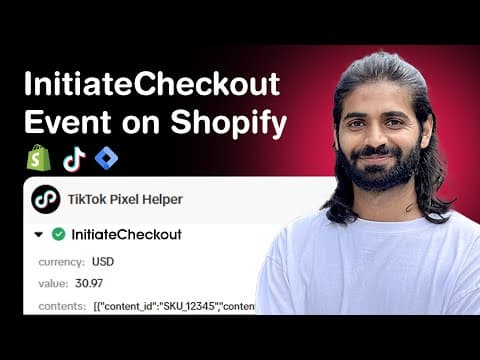
Shopify TikTok page-view tracking with GTM
Install the TikTok base pixel on a Shopify storefront with GTM, then check page views, consent and duplicate installations.

Shahzada Ali Hassan, founder of Crisperchecked against 5 sources
The short answer
Track Shopify storefront page views by loading the TikTok base pixel through Google Tag Manager. TikTok's installation guide uses a Custom HTML tag with an All Pages triggerads.tiktok.com. This guide is for store implementers checking a theme installation, consent behavior and duplicate page views before adding ecommerce events.
- GTM base-tag trigger: All Pages.
- Use the pixel ID from the intended TikTok dataset.
- If another installation sends page views, inspect it before adding this tag.
- Steps and settings checked against Shopify and TikTok documentation on 25 October 2026.
FREE AUDIT
NO LOGINCheck what Meta and Google can count on your site
- Your site
 Crisper
- Meta and Google count it
Enter your website to see how good its tracking is, and whether Meta is likely restricting it.
The video shows the older live-container flow; the written steps below are current and use development-store GTM Preview.
01How do I add GTM to the Shopify storefront?
Add the container to the development store's theme.liquid. Google's web-container instructionssupport.google.com place the script near the start of <head> and the noscript block immediately after <body>.

Use a development store and a GTM container reserved for testing. Check existing theme scripts and app pixels before adding another installation. This guide is for a Liquid storefront; use a separate implementation for a headless storefront.
1. Install or verify the test container
- Replace
GTM-XXXXin both snippets below with the test container ID. - In the development store's
theme.liquid, paste the script near the start of<head>. - Paste the noscript block immediately after
<body>. - If that container is already installed, verify its location instead of inserting it again.
<!-- Google Tag Manager -->
<script>(function(w,d,s,l,i){w[l]=w[l]||[];w[l].push({'gtm.start':
new Date().getTime(),event:'gtm.js'});var f=d.getElementsByTagName(s)[0],
j=d.createElement(s),dl=l!='dataLayer'?'&l='+l:'';j.async=true;j.src=
'https://www.googletagmanager.com/gtm.js?id='+i+dl;f.parentNode.insertBefore(j,f);
})(window,document,'script','dataLayer','GTM-XXXX');</script>
<!-- End Google Tag Manager -->
<!-- Google Tag Manager (noscript) -->
<noscript><iframe src="https://www.googletagmanager.com/ns.html?id=GTM-XXXX"
height="0" width="0" style="display:none;visibility:hidden"></iframe></noscript>
<!-- End Google Tag Manager (noscript) -->
Done when the development theme contains the intended loader once.
02How do I add the TikTok base pixel?
Paste the intended pixel's base code into a Custom HTML tag. TikTok's setup guideads.tiktok.com uses an All Pages trigger.
2. Configure the base tag
- Copy the base code from TikTok Events Manager.
- In GTM, save it in a Custom HTML tag named TikTok base.
- Set All Pages as the trigger.
- Keep the store's consent controls on this tag.
Done when the code contains the intended pixel ID and the saved trigger is All Pages.
03How do I test TikTok page views before release?
Check the tag in GTM Preview and the received browser event in TikTok Events Manager > Test eventsads.tiktok.com. A tag firing is not the same check as TikTok receiving the event.
3. Follow a page load through both tools
- In GTM, open Preview, following Google's Preview instructionssupport.google.com.
- Enter the development storefront URL and connect.
- Load a product page and a collection page.
- Inspect the TikTok base tag and its pixel ID.
- Test both consent choices against your consent plan.
- Open the pixel's Test events flow.
- Use the browser view: TikTok lets you filter browser and server test eventsads.tiktok.com.
- Repeat those page loads.
Done when Tag Assistant shows the connected page and the intended container, the base tag fires only when expected, no second installation runs the same base code, and the Test events page views match the pages visited with no unexplained duplicate per page load.
04Why are Shopify page views missing or duplicated?
Check the loader, consent choice and pixel ID before adding another tag.
- Missing container: inspect the development theme and the container shown in Tag Assistant. Correct the installation before changing the TikTok event.
- Two base installations: compare the app and GTM setup. Choose which installation owns the page view.
- Expecting a theme snippet to replace checkout tracking: use Customer events for the separate checkout setup.
Shopify has retired checkout.liquid and Additional Scripts on Thank you and Order status pagesshopify.dev; use the TikTok Purchase guide for the current checkout method.
Save the tested container version, pixel ID, pages and consent results for review.
Done when those notes distinguish GTM firing from received TikTok page views.
05What changed in this guide
- 25 October 2026: Clarified storefront scope, linked the current checkout method, and replaced live-container publishing with Preview and TikTok receipt checks. Added a notice near the top identifying the older video flow. The video was not re-recorded.
Sources
5 sources
- 1TikTok's installation guide uses a Custom HTML tag with an All Pages triggerads.tiktok.com↩
- 2Google's web-container instructionssupport.google.com↩
- 3Google's Preview modesupport.google.com↩
- 4TikTok Events Manager > Test eventsads.tiktok.com↩
- 5Shopify has retired checkout.liquid and Additional Scripts on Thank you and Order status pagesshopify.dev↩